

Menu
Two virtual printers are installed during the Volume client installation. A 'Volume' driver is installed for black and white printing into Volume. A 'Volume in Colour' driver is installed for colour printing into Volume. If issues arise when using these virtual printers, please check the following guide.
Open Printers and Scanners in Windows. Click on the virtual printer and select 'Open queue' to check what job is stuck. Once confirmed the job is stuck there, select ‘Manage’.
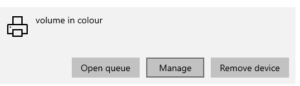
In the following page, select 'Printer properties'.
From the Printing Preferences window, select the 'Settings' tab and then select 'Application' from the left hand Category list. Check the Application path is correct for volumeFinance.exe.

If all variables above are correct, continue with the following steps.
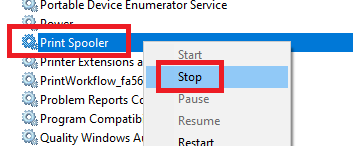
Clear the Windows print spooler. Open 'services.msc' and locate the 'Print Spooler' service. Right-click on the service and select 'Stop'.
Now, in File Explorer, head to the following path:
C:\Windows\System32\spool\PRINTERS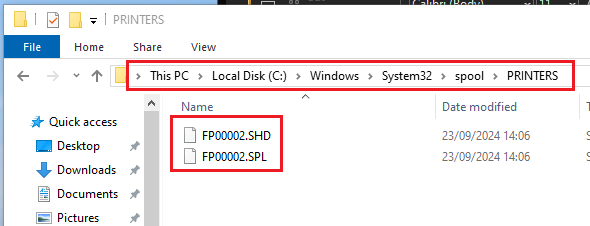
There will be 2 files in the location that are the stuck job, both with the same filename, but different filetypes, .SHD and .SPL.
Make sure the 'Print Spooler' service is stopped. If stopped, you can delete the two stuck files safely. If multiple jobs are in the spooler and you cannot tell which job is the stuck one, sort by 'Date Modified' and the oldest set should be the stuck set.
Once the stuck files have been deleted, you can safely restart the 'Print Spooler' service using the same method to stop the service, clicking 'Start' instead.
Prints should now pass through the affected printer with no issues.
If the virtual printers are still not functioning correctly try reinstalling them. Open Devices and Printers in Windows. Right click on the virtual printer and select ‘Remove device’. Please also remove the folder "C:\Users\Public\Documents\zvprt50".

Then follow the knowledge base article here to reinstall Volume on the PC. This will also reinstall the virtual printers with their default settings.
If Volume is installed on a Terminal Services or Citrix environment, make sure the default location for the temporary image file is correct for the virtual printer. Please see knowledge base article here on how to do this.

