

Menu
Depending on Windows permissions the installation may need to be run as the local administrator.
Downloading the Installer:
Head to www.watermarktech.co.uk/support/install
Input the download details provided for installing,

Click the install button, you will now have the installer MSI.
Navigate to the installer and run it.
By default the installation path will be set to, C:\Program Files (x86)\WatermarkTech\volumeFINANCE

Select the installation type as, Client/Work Station.

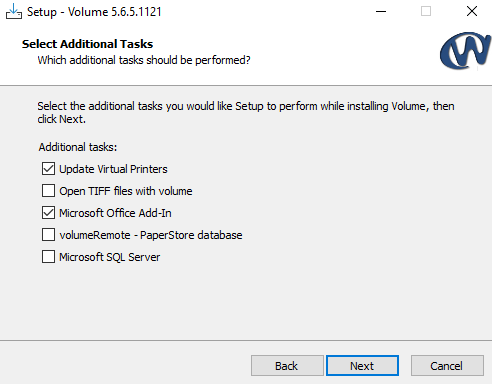
In the 'Select Additional Task' screen, the ‘Install Virtual Printers’ will be ticked by default.
Select ‘Open TIFF files with volume’, if you would like to associate files with *.tif extensions with Volume. When a TIF image is double-clicked in Windows it will be imported into Volume.
Select ‘Microsoft Office Add-In’ to allow the installation of Volume to integrate with your Microsoft Office Suite.
‘volumeRemote – hosted database’ should only be ticked if your Volume solution is hosted by Watermark - Volume Remote. A blank volumePaperstore.ini file will be created for you to add the connection details to in, C:\Program Files (x86)\WatermarkTech\volumeFINANCE\..., to obtain the connection details, please contact Watermark Support. Alternatively, if you already have a volumePaperstore.ini file, leave the box unticked and copy your existing file into 'C:\Program Files (x86)\WatermarkTech\volumeFINANCE'
‘Microsoft SQL Server’ should only be ticked if this database system is in use. MS SQL Server is an alternative to the default database system - Firebird.
Once the installation is complete Volume will need to know where the database is located to allow you access to it.
In the case of volumeRemote (hosted) you should have been provided with a volumePaperstore.ini file to copy to the default installation folder. In the case of Microsoft SQL Server launch Volume and a prompt is displayed to enter the database alias and server name. Contact the individual or organisation that is responsible for your IT support for this information.
For normal local office-based installations, there are two methods to connect to the database on the server.
Method 1
Browse across the network to the server that holds your Volume database.
Navigate to the Volume database folder and double click on the database file whatnopaper.fdb
Your new client installation will then establish a connection with the server and remember it going forward.
Method 2
Create a text file called volumeAcuutech.ini and save it into the installation folder for Volume on the client.
E.g. c:\program files\watermarktech\volumefinance\volumeAcuutech.ini
Now launch Volume and enter the database alias (default is whatnopaper) and server name. This will populate volumeAcuutech.ini which can then be copied and used for other installations.
For clarification on which of the two methods to use and what your database alias and server name are called, contact the individual or organisation that is responsible for your IT support.
For Volume Remote Installations
Obtain a copy of the VolumePaperstore.ini file from Watermark Support and then place this in the same file location as the client installer file and run it, the installer wizard will then copy and apply the VolumePaperstore. ini to the volumeFINANCE directory.

