Menu
Troubleshooting steps for a stuck print spooler
The Print Spooler is software which temporarily stores print jobs in memory until the printer is ready to print them. Sometimes print jobs can get “stuck” in the queue, and this can stop documents from printing.

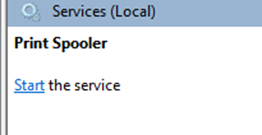
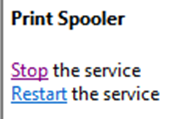
2. In the Services window, scroll down the list until you find Print Spooler and click it.

3. To start, click Start. To stop, click Stop.
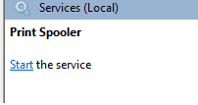
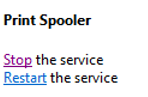
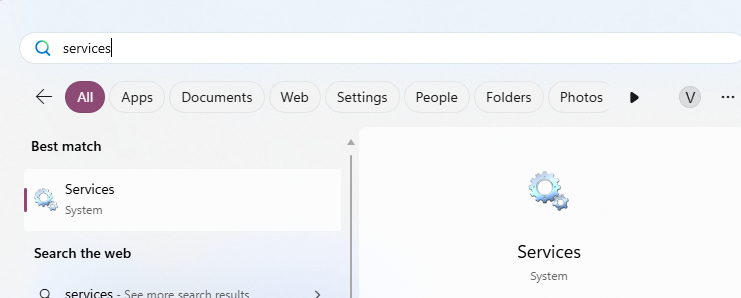
2. In the Services window, scroll down the list until you find Print Spooler and click it.
3. Click Stop.
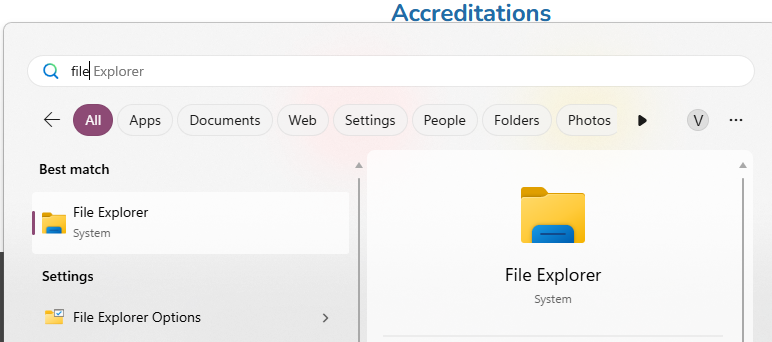
4. Open File Explorer by opening the start menu (or by pressing your Windows key), type File Explorer and press Enter.
5. Navigate to C:\Windows\System32\Spool\PRINTERS then press Enter on the keyboard.

6. Remove all print jobs by pressing Control + A, then Delete on the keyboard.
7. Return to the Services window and press Start on the Print Spooler service. The print queue should now be empty.