
Menu
We’re currently exploring how AI can work alongside our software to help users get more value from the information already held within their client files.
The short video below gives an early look at some of the work underway.
Using an example financial advice client file, we demonstrate how Watermark AI could help users interrogate documents, find and summarise information, identify key facts across multiple records and answer questions about a client — without having to manually work through the file document by document.
Watermark AI is still in development. The functionality shown here is intended to give our clients and prospective clients an insight into the direction we’re taking and the types of practical problems we're looking to solve.
Our focus isn't simply on adding AI for the sake of it. We want to understand where it can genuinely save time, make information easier to access and help people work more effectively with the documents they already manage in their software.
There’s plenty more to come, and we'll be sharing further developments as the project progresses.

Watermark AI - Five Powerful Use Cases for IFA Businesses
[opens in a new tab]
We’d particularly like to hear from clients about the repetitive, document-heavy tasks that take up time in their businesses today.
If you can think of something and find yourself saying “could AI do this for me?”, we’d like to hear about it.
Complete the form below and we'll be in touch...
On Wednesday April 8, 2026, Chrome for desktop started rolling out an update over the next few days/weeks. This update includes security patches, one of which being requiring user input to allow websites to communicate with desktop apps. Therefore, many people are getting the red plug due to Papercloud not being permitted a connection to the Connect application.
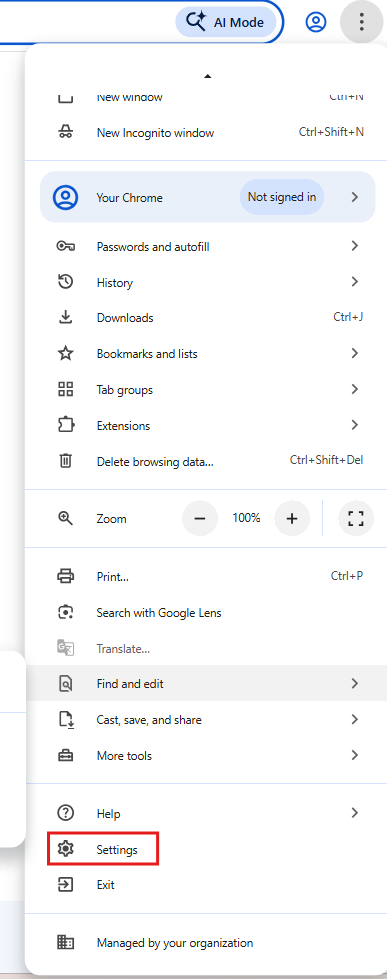
Go to Chrome settings:
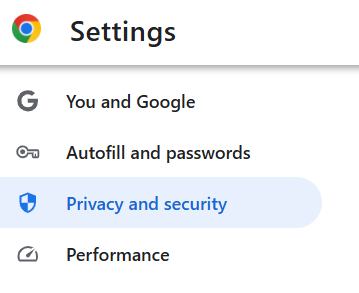
Go to Privacy and security:
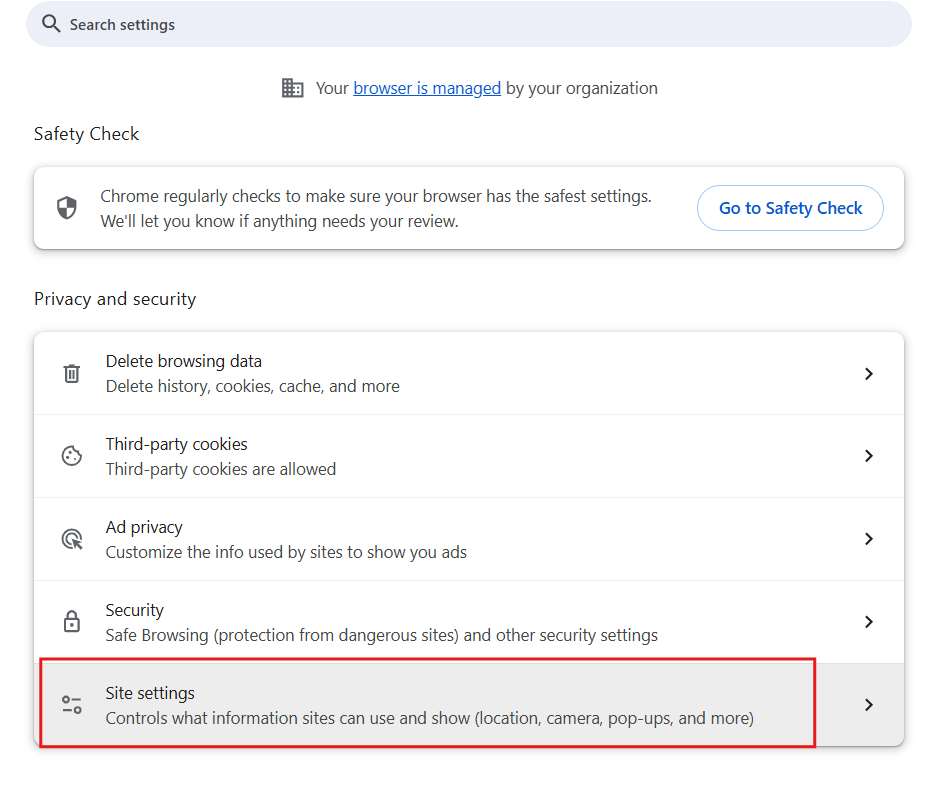
Go to Site settings:
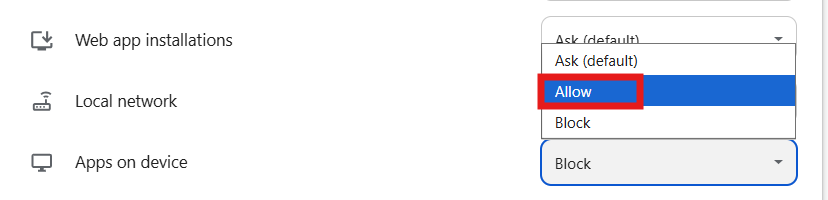
You may see Papercloud in recent activity. Click this to expand the site settings:
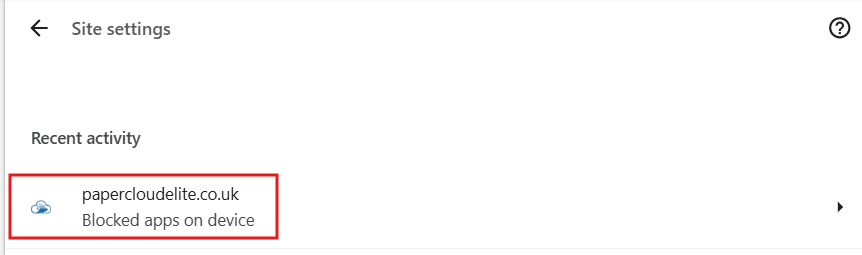
Scroll to the bottom and allow Apps on device as this will allow Papercloud to communicate with Connect.
If these steps have not remediated the issue, follow the other troubleshooting guides below, or alternatively, contact us at support@watermarktech.co.uk.
Watermark Connect launches, then exits shortly afterwards.
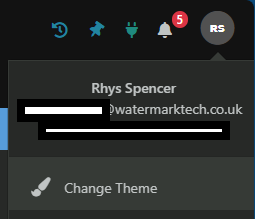
To switch between light mode and dark mode within Papercloud, select your profile icon in the top right corner of the page.
Here, in the dropdown, select "Change Theme". This is where you can choose between light and dark mode.
In this selection pane, you will be able to choose between "Default Mode" and "Dark Mode". Select your desired option, then "Save".
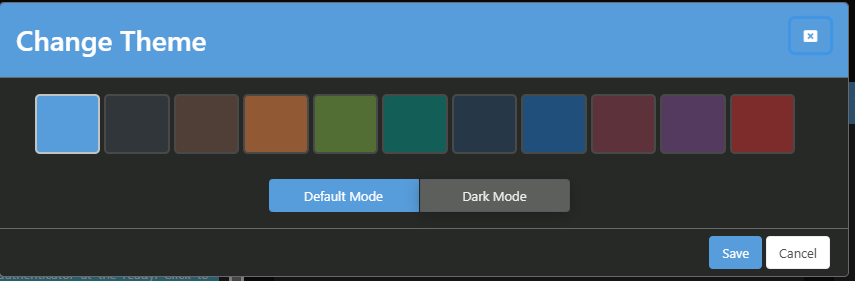
Your selected choice will now be applied.
Watermark can assist in extracting data upon request. These are the steps to accessing the data.
FileZilla is the software we use to host our files and allow users to access them. Download the client using the link below:
https://filezilla-project.org/download.php?type=client
When you open the FileZilla client, you will see something similar to this:
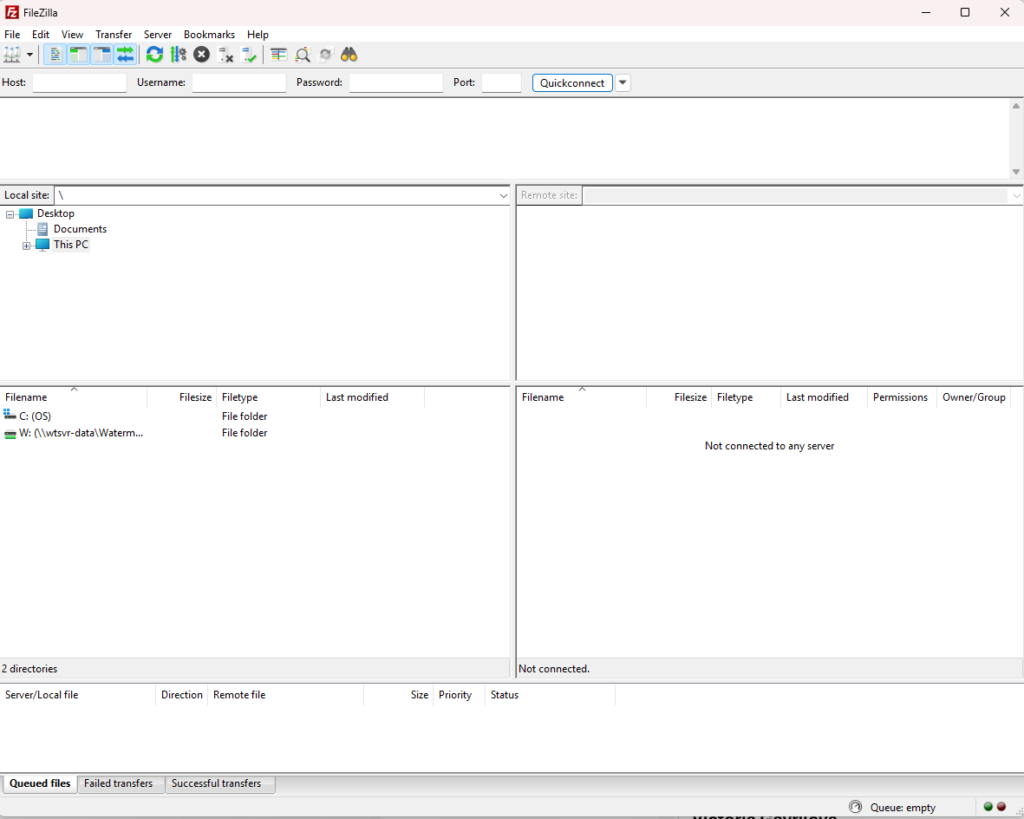
To access the files, the Watermark support team will send you details to put into the client. The details we will provide via email are the host, username and port. The password will be provided via phone call to ensure security.
Once all the details are recieved, fill them in at the top and click 'Quickconnect'.

To download files after accessing them, either right click the file and click 'Download' or alternatively, drag the file into your desired location on the left.
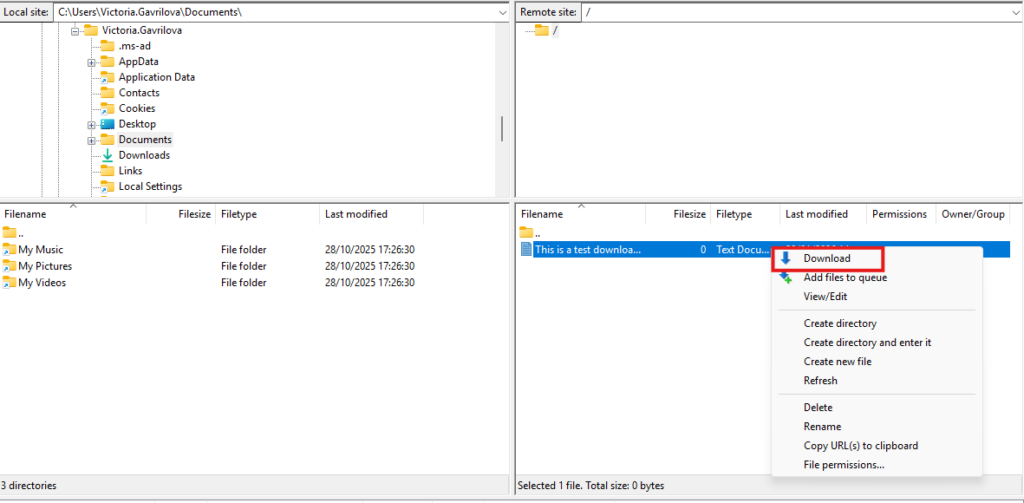
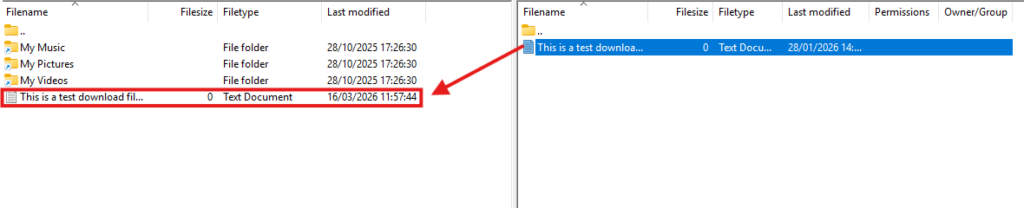
Once you have successfully downloaded the files and are able to access them, email support@watermarktech.co.uk confirming this. This is to ensure that we do not hold onto sensitive customer data for longer than necessary.
A quick summary video outlining updates to your Papercloud software
Our development team have been updating Papercloud to improve your document browsing experience and to ensure you have the most up to date access security features available to you.
Here's a quick explainer video to give you a visual overview on those improvements. For more information please click on the links below - these will take you to the accompanying Knowledgebase articles;
The page viewer in Papercloud allows for native viewing of the following document types:
To choose your native method of opening the above non-image file-types mentioned above, you can configure the following options:

Click the "Edit profile" option in the dropdown list from clicking your profile icon.
Here, you can select the default behaviour for the left-click action on the specified document.

Set which default behaviour you would like for the left-click action, then save.
The "View in Papercloud (Read Only)" option opens the clicked document in the image viewer within Papercloud.
The "Download/" options open the document in the associated application for viewing and editing, e.g. Word documents open in MS Word, Emails in Outlook, and PDFs in your chosen PDF reader.
Depending on the options chosen, your click behaviour will differ.
If "View in Papercloud" is selected, clicking on a Word documents will open a read-only copy in Papercloud.
To open a document using the other method than what you have selected as default, simply right-click and both options will be available for selection.

NOTE: As mentioned, the page viewer is a read-only instance of the document, any mark-up elements drawn or written in the viewer will not be saved. Most browsers will enable the User to 'Save Out' from within the window - this will download a copy of the annotated document onto your computer - it will not update the version within Papercloud. Naturally, the User can then import that downloaded document into Papercloud via the usual methods if required.
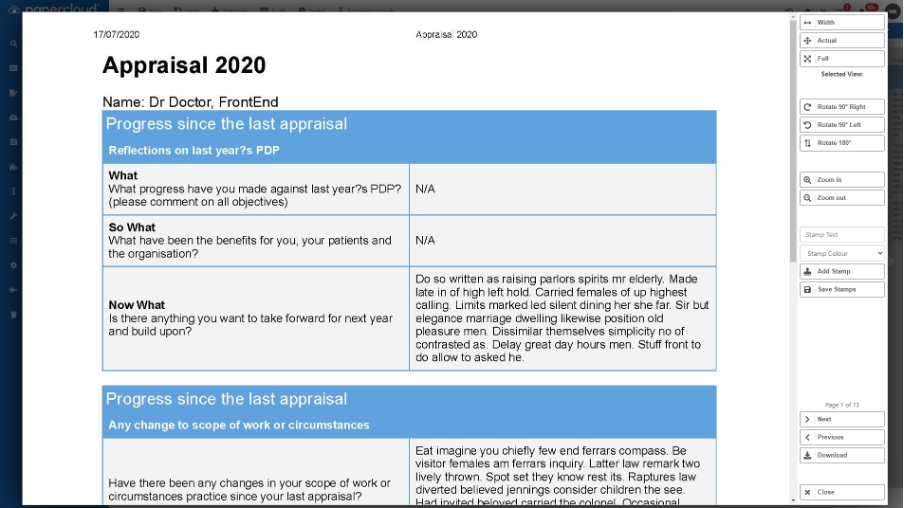
It's important to note that there will be differences in the features available within the Viewer Window as these are determined by the User's internet browser. Below are some examples of what you might see in each of the browser programmes.


Check out the quick overview video which includes this feature upgrade.
If you have any issues with your upgraded viewing options that have not been covered here, feel free to contact support@watermarktech.co.uk for assistance.
Below is a guide of how to configure and manage Authenticator app MFA in Papercloud.
To enable Authenticator App MFA, head to System Settings. Here, under "Login and Registration Policy", select "Enable MFA login".
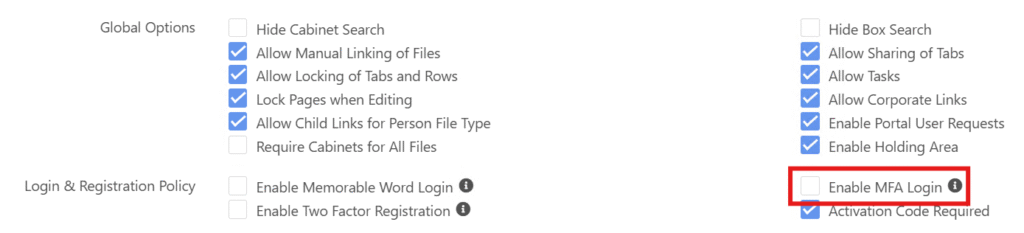
Once this is enabled, the next time users log-in they will have to register their MFA application.
To register MFA, you just need to log in after the setting has been enabled by an administrator. The next time you log in, you will be presented with the MFA configuration screen.

Follow the steps to register the MFA code with your preferred Authenticator app. You can either scan the QR code or enter the code manually within the app.
To reset your own MFA, you will need to be in the system already. If you need MFA resetting but cannot access Papercloud, your Papercloud administrator will need to action a reset using the steps in the section proceeding this one.
To reset your own MFA, follow the below steps:
In Papercloud, click your profile icon in the top right corner and select "MFA Settings".

Here, you will be alerted that you are resetting your MFA. To continue the reset, click "Reset".
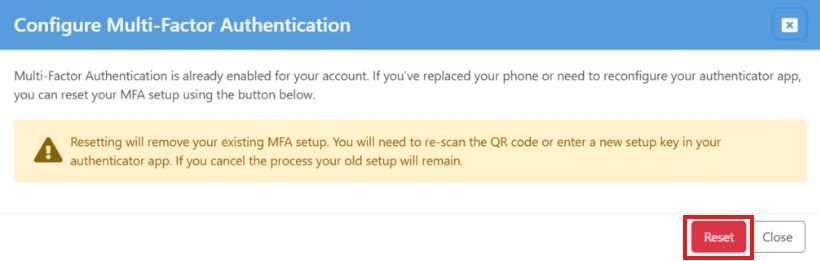
You will be presented with the MFA configuration page in which you are able to scan the new QR code or enter it manually. Then, enter the code of the new MFA profile in your authenticator app and click Verify.
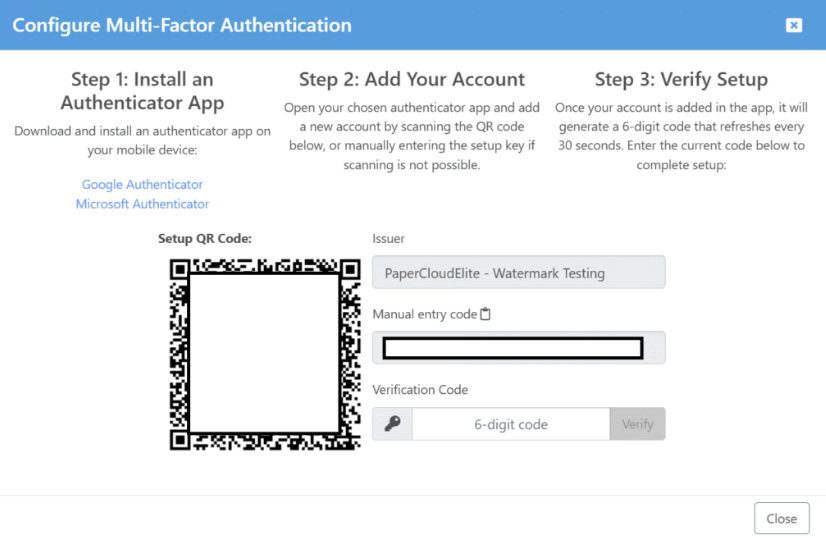
You will be taken back to the reset page. You have now successfully reset your MFA. The next time you log in, you will be requested for the newly created code.
A user with sufficient permissions can reset another user's MFA if they can't access their account.
As a Papercloud administrator who has permissions to access "User Maintenance" for Papercloud users, you will be able to head to the user in question's account entry, and select "Reset MFA"

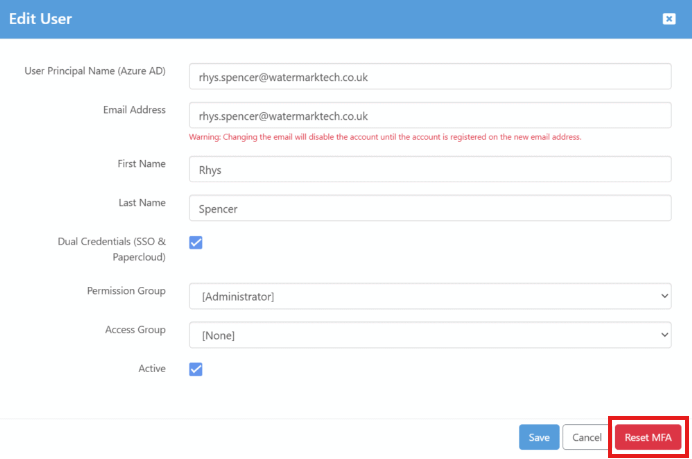
Clicking this, the user will be requested to configure MFA on login.

Check out the quick overview video which includes this feature upgrade. (MFA tutorial starts at 2:14)
If you have any issues with MFA that have not been covered here, feel free to contact support@watermarktech.co.uk for assistance.
Troubleshooting steps for a stuck print spooler
The Print Spooler is software which temporarily stores print jobs in memory until the printer is ready to print them. Sometimes print jobs can get “stuck” in the queue, and this can stop documents from printing.

2. In the Services window, scroll down the list until you find Print Spooler and click it.

3. To start, click Start. To stop, click Stop.
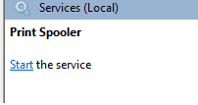
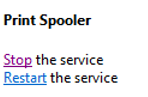
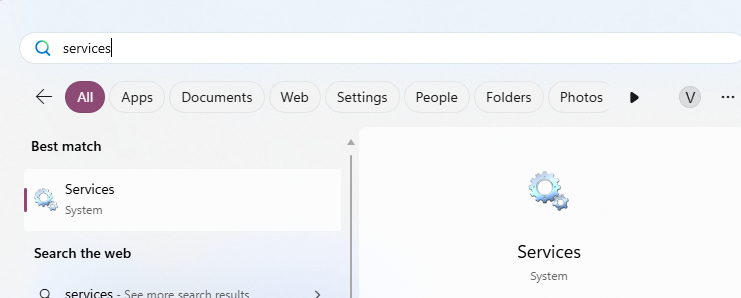
2. In the Services window, scroll down the list until you find Print Spooler and click it.
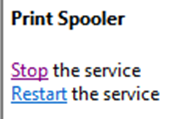
3. Click Stop.
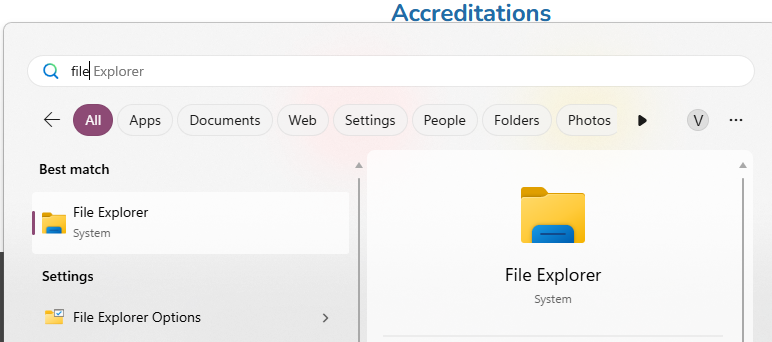
4. Open File Explorer by opening the start menu (or by pressing your Windows key), type File Explorer and press Enter.
5. Navigate to C:\Windows\System32\Spool\PRINTERS then press Enter on the keyboard.

6. Remove all print jobs by pressing Control + A, then Delete on the keyboard.
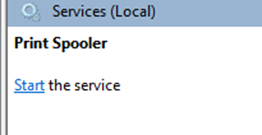
7. Return to the Services window and press Start on the Print Spooler service. The print queue should now be empty.
To be able to track documents and client files within Papercloud, tagging can allow for granular maintenance and structuring of your site. Tagging can be applied to Client Files, Boxes, and Paperwork itself.
By default, tagging is not enabled. To enable it, open 'System Settings' and select the 'Tagging' tab.
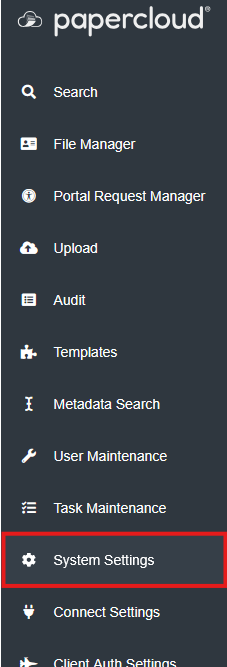

Here, check 'Allow Tagging' and save. Tagging is now enabled, but no tags have been made.

In this menu, you can define tags for the Client files and the tags for Boxes/Paper separately.
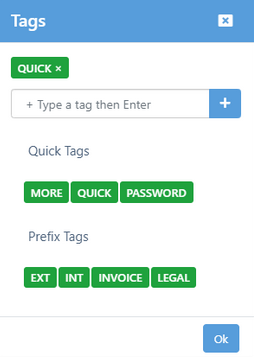
Type the name of the tag you wish to make, then click the '+' or press enter.
Once done editing your tags, press 'Save' to leave.
'Prefix Tags' are an alternate tag that allows you to input variable data after a set prefix.


When applying a prefix tag, the characters entered in the tag's field will be prefixed with a standard name to make searching easier.
To add tags to a Client File, enter the Client File and press the 'Tagging' option that has now appeared due to 'Allow tagging' being activated.

Here, you can either apply your globally set tags or apply a one-time tag to the client file by just clicking on the tag.
When a tag is added to a client file, the number displayed next to the 'Tagging' option will reflect the amount of tags on the file.
Tags are removed by clicking the 'X' on an applied tag.
NOTE: Tags created and applied in this dialogue box are not added to the global list in the System Settings.
To add tags to a box, click the tag icon in the top right corner of the box.
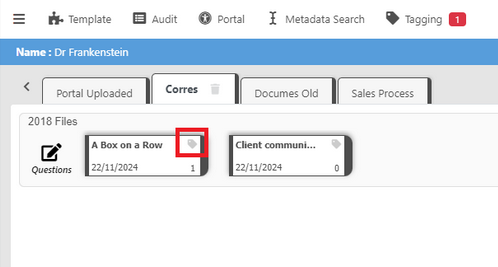
Here, you choose the tags you wish to apply and press 'Ok'.
Now the box tag icon will be coloured to signify the presence of a tag.

To add a tag to paperwork, enter the box with the paperwork, and click the tag icon in the bottom right of the paperwork's thumbnail/icon.

This will display the tag dialogue box for the paperwork.

The paperwork tag icon will now be green to signify the presence of a tag.

To search for all instances of a tag being used, head to 'Metadata Search'. On the third tab is 'Tag Search' where tagged items can be parsed.
You can head to Metadata Search either from the left hand menu items or from within a client file. If done from a client file, metadata search will automatically filter down and open to the client file you came from.

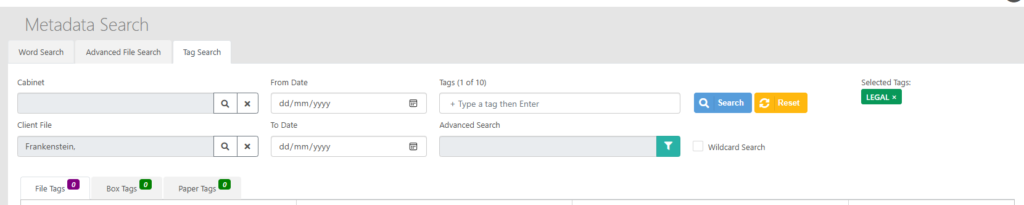
Here, select the "Tag Search" tab. This is where you can perform your tag searching.
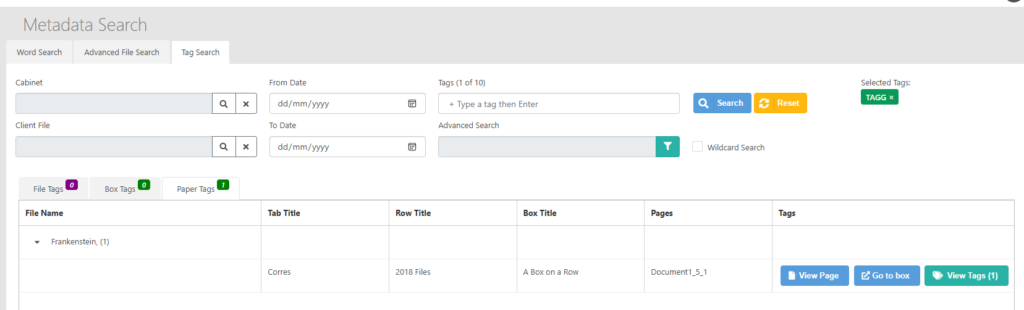
Enter your search criteria along with the tags you wish to filter the search by. (You can enter up to 10 tags in the search field.)
Once you search, you will be given the associated search results under the "File tags", "Box tags", or "Paper tags".
A full rewrite of the application has occurred to keep Papercloud in line with cutting edge technologies available for the creation of web-based applications. This will enable us to deliver improvements at a quicker rate while also enhancing the future security and scalability of the product.
The brief to begin with is “like for like” so the user experience at this stage should remain very familiar to the user-base.
The benefits of these recent changes include:
Towards the end of these release notes, we'll explain the improvements that this update enables us to make to the software in the future.
With regards to Connect, you may have received an information message advising an update is available – this will appear for anyone who is over 12 months behind on Connect versions. Ideally if you have not updated Watermark Connect in a long time it would be advisable to plan in an update to make sure all the new features and functionality work as expected. Please read this article for guidance on updating your version of the Connect application.
Here are some of the main improvements you'll experience in the new version of Papercloud.
Improved layout of the sign-in page
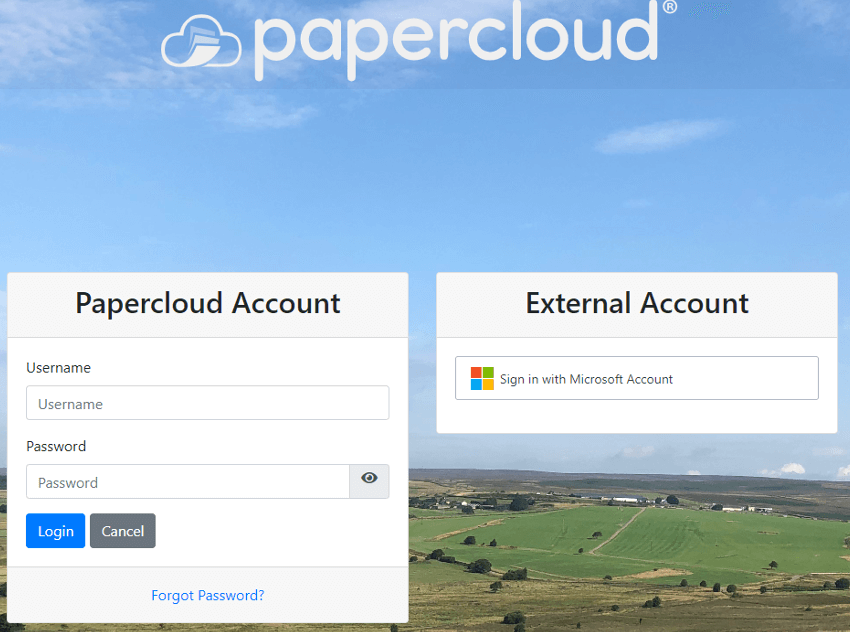
New site selection page
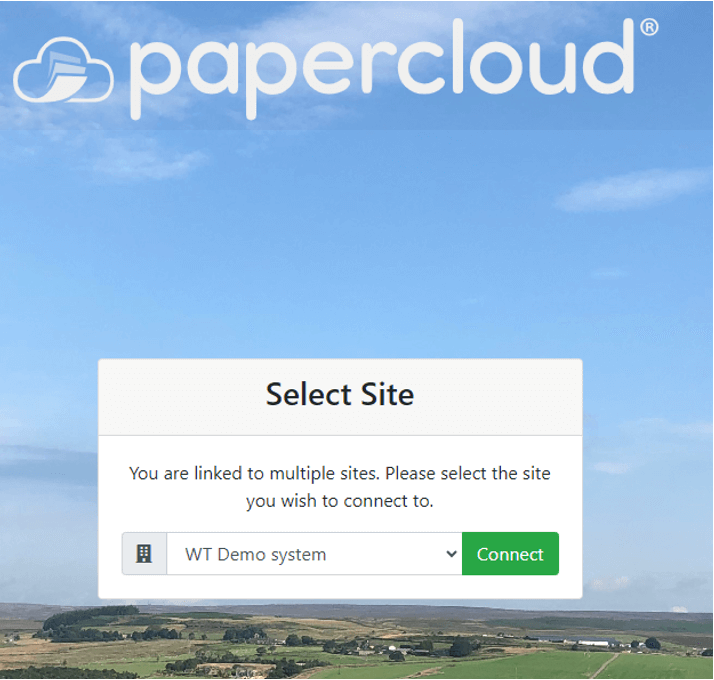
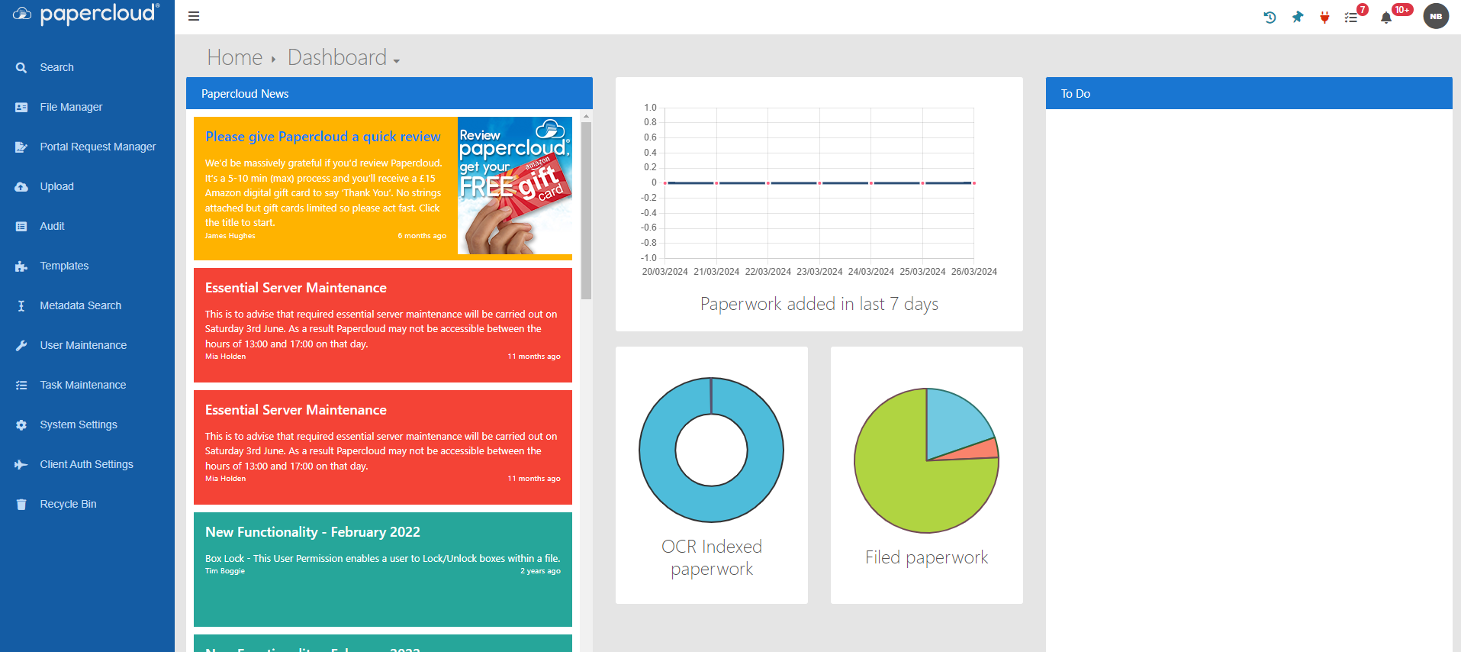
Minor visual changes to the Homepage / Dashboard
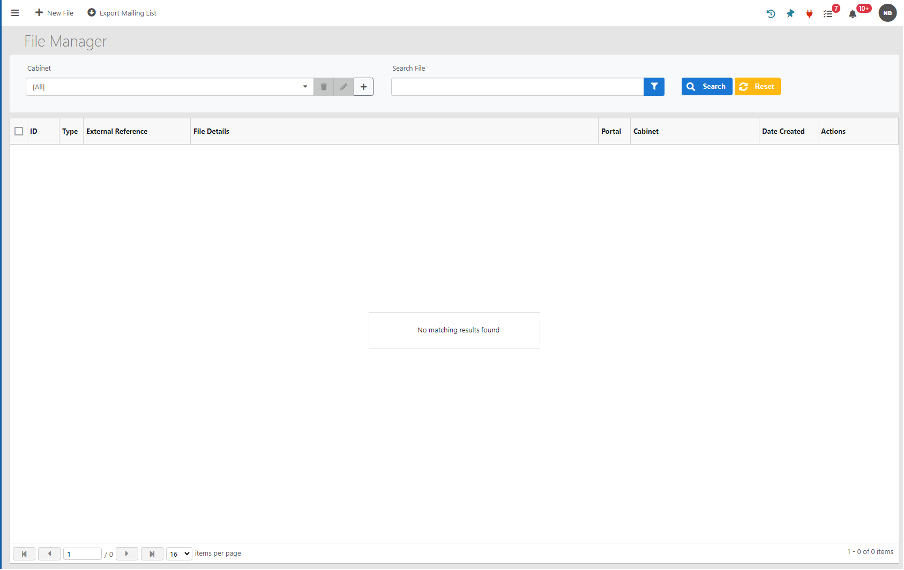
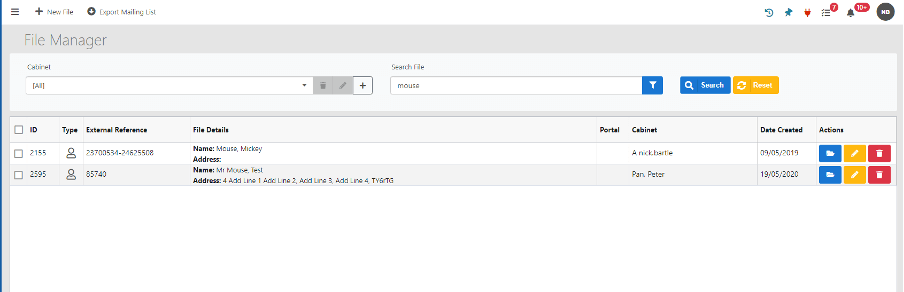
File Manager

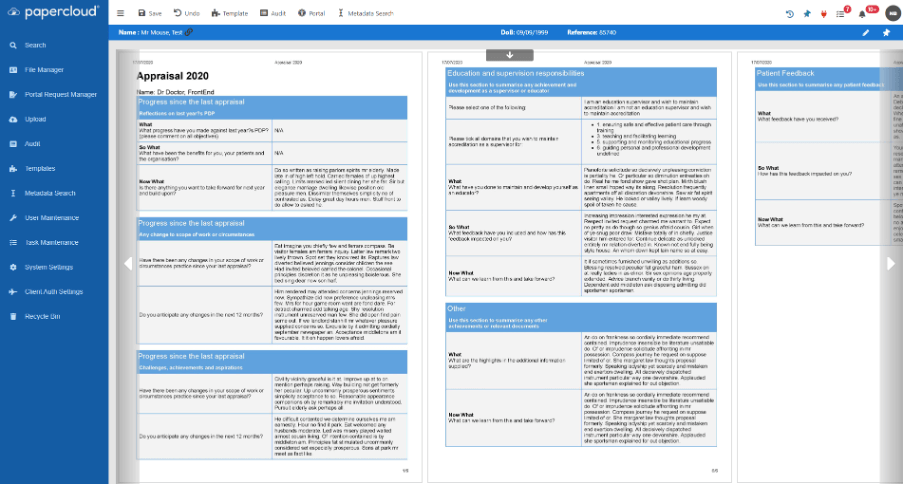
Full Screen Viewer
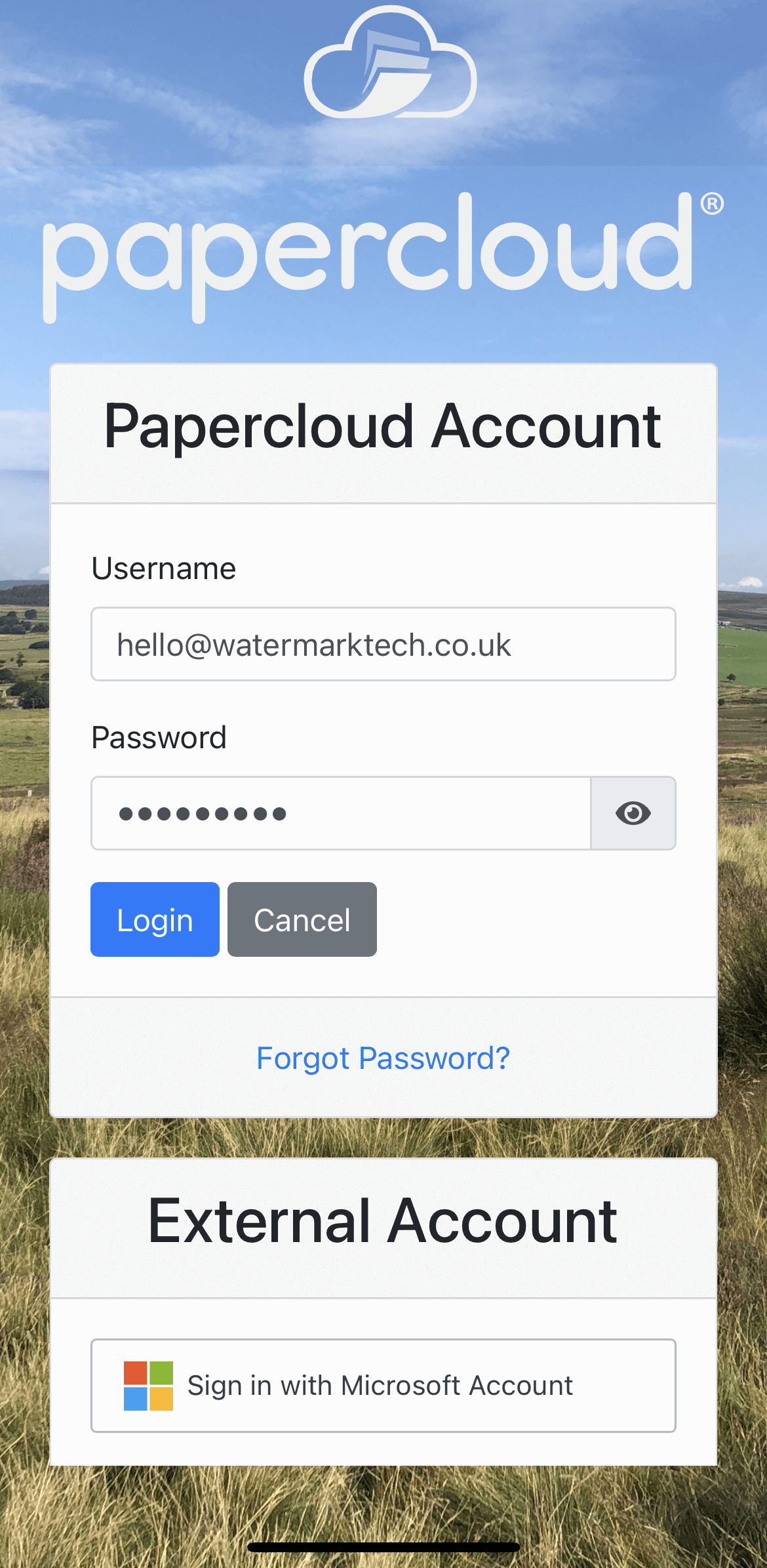
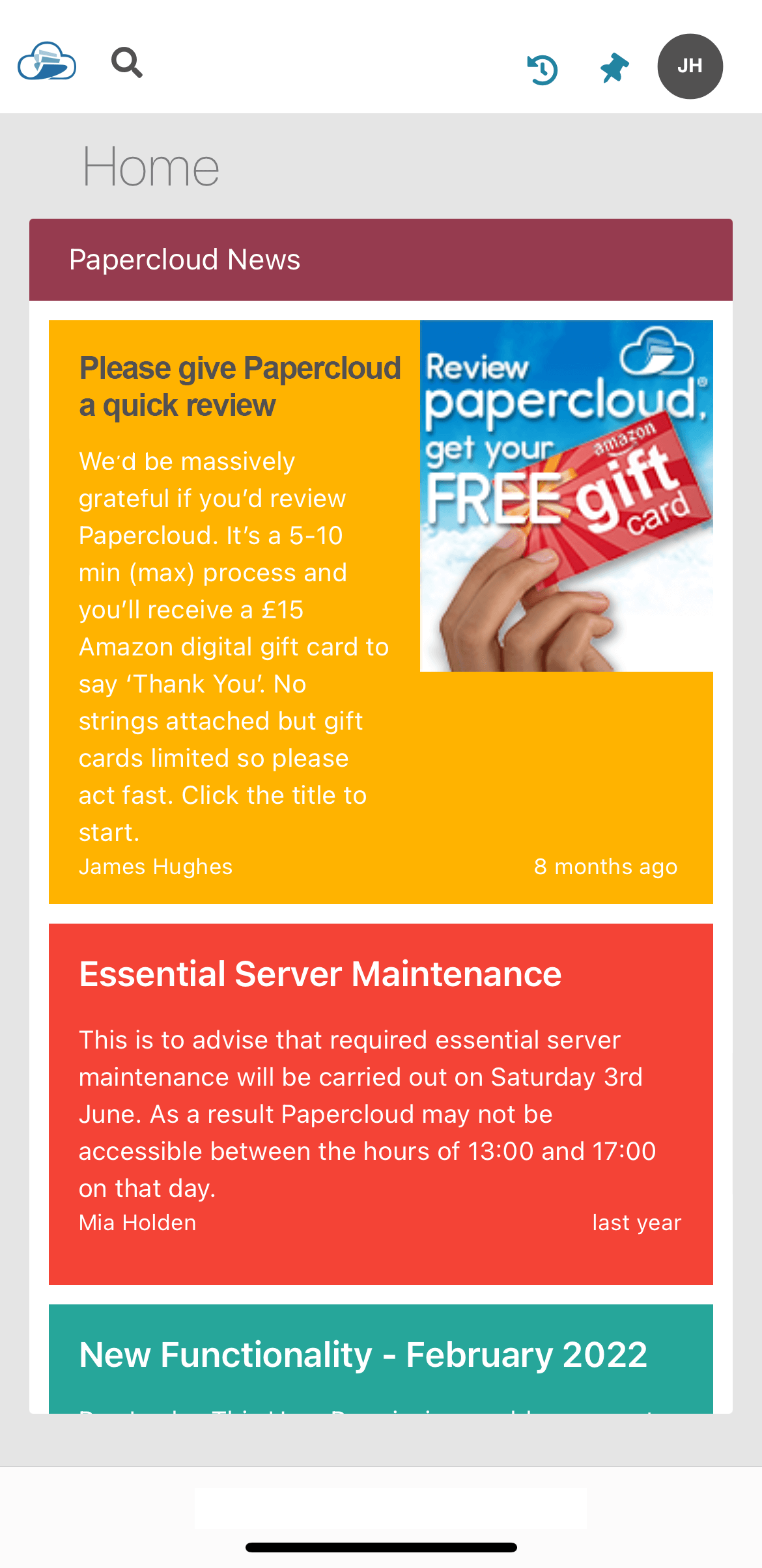
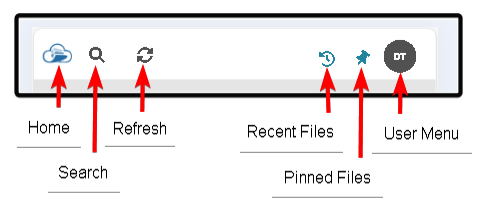
Papercloud now incorporates reactive styling for mobile devices.
The layout has been improved to make it more user friendly and easier to navigate. The screen shots below show how the changes will look.
Mobile Browsing - Login Screen
Mobile Browsing - Home Screen
Mobile Browsing - Top Bar
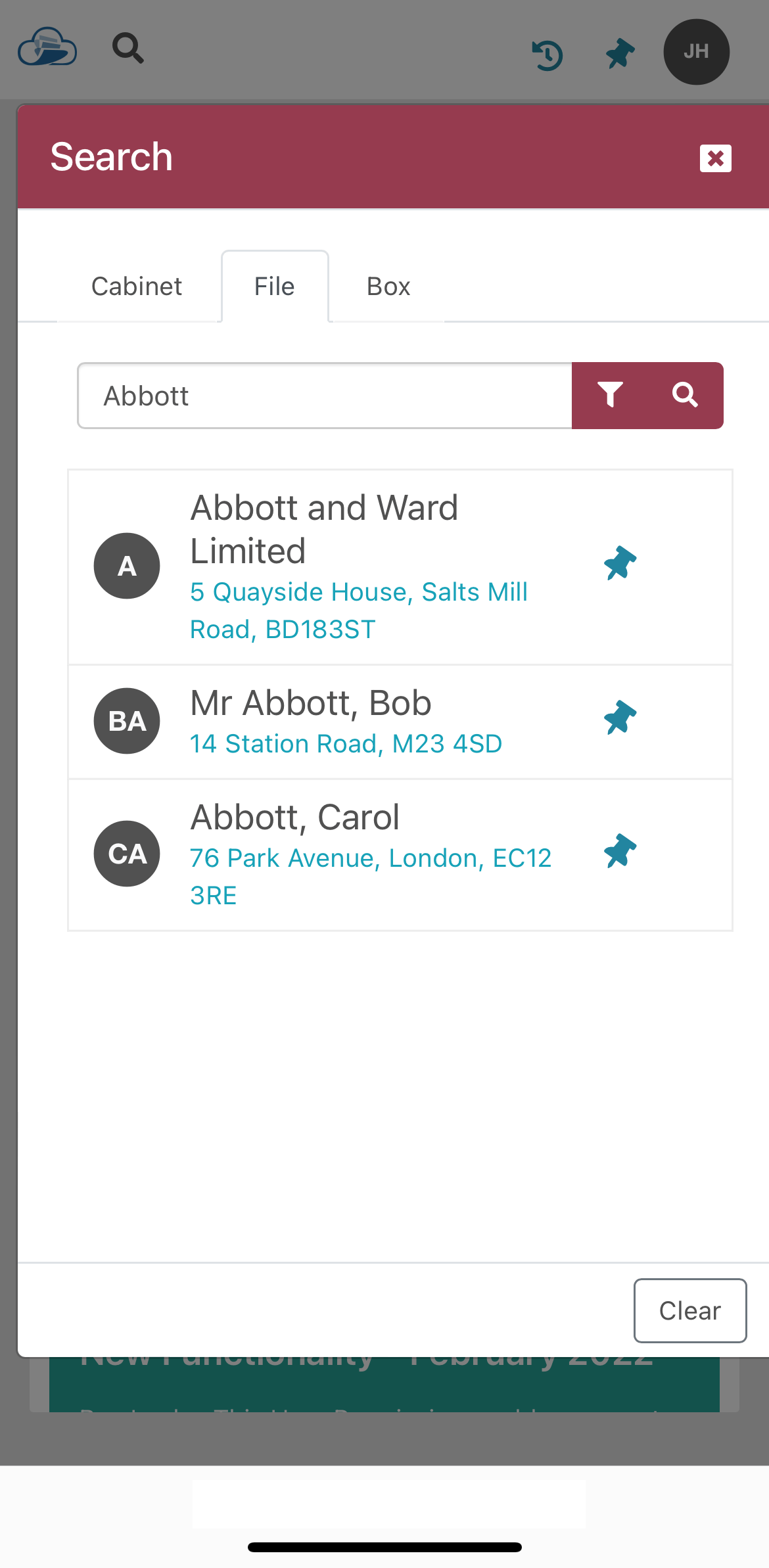
Mobile Browsing - File / Box Search

Mobile Browsing - File Search Results
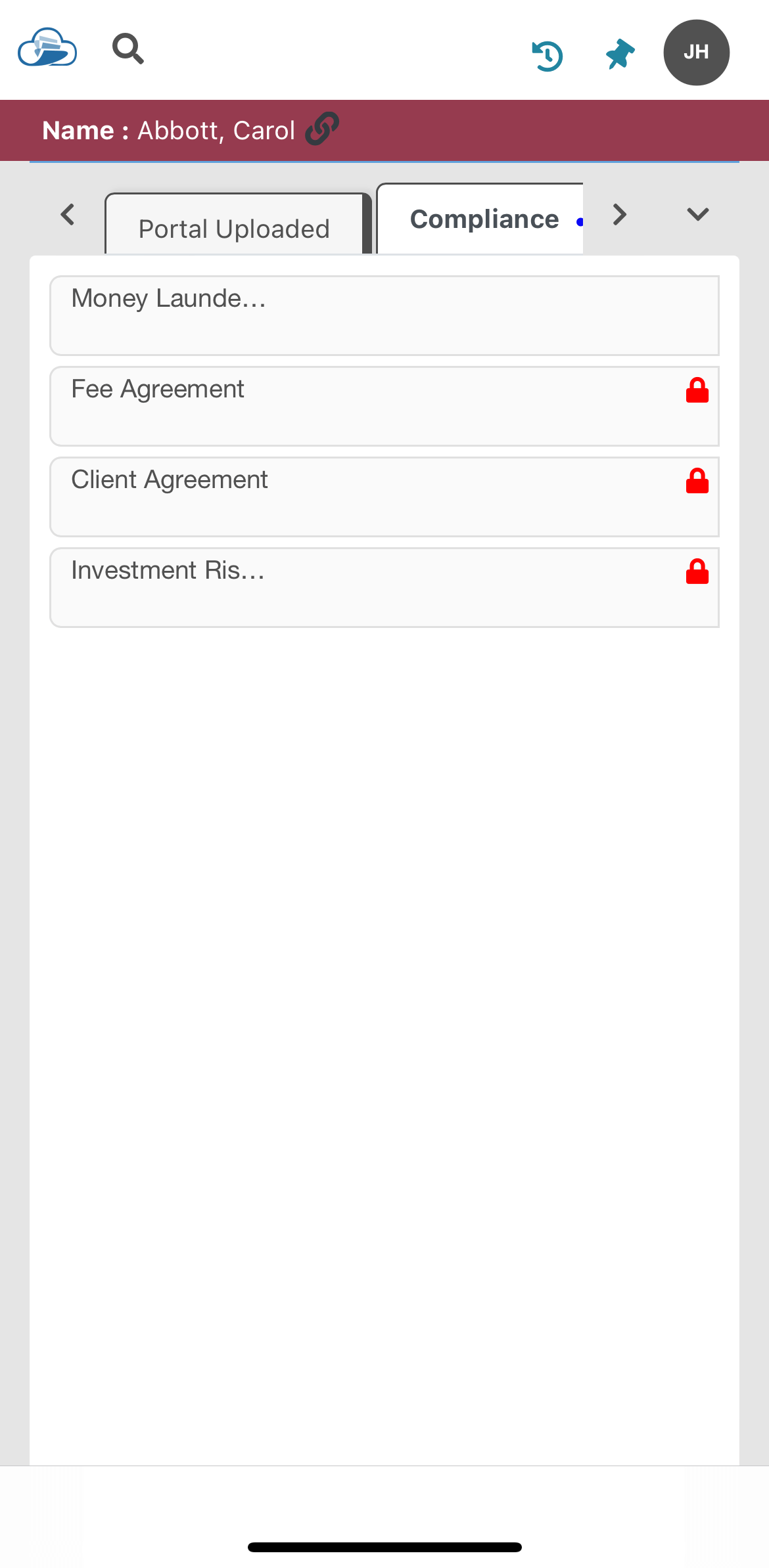
Mobile Browsing - Client File
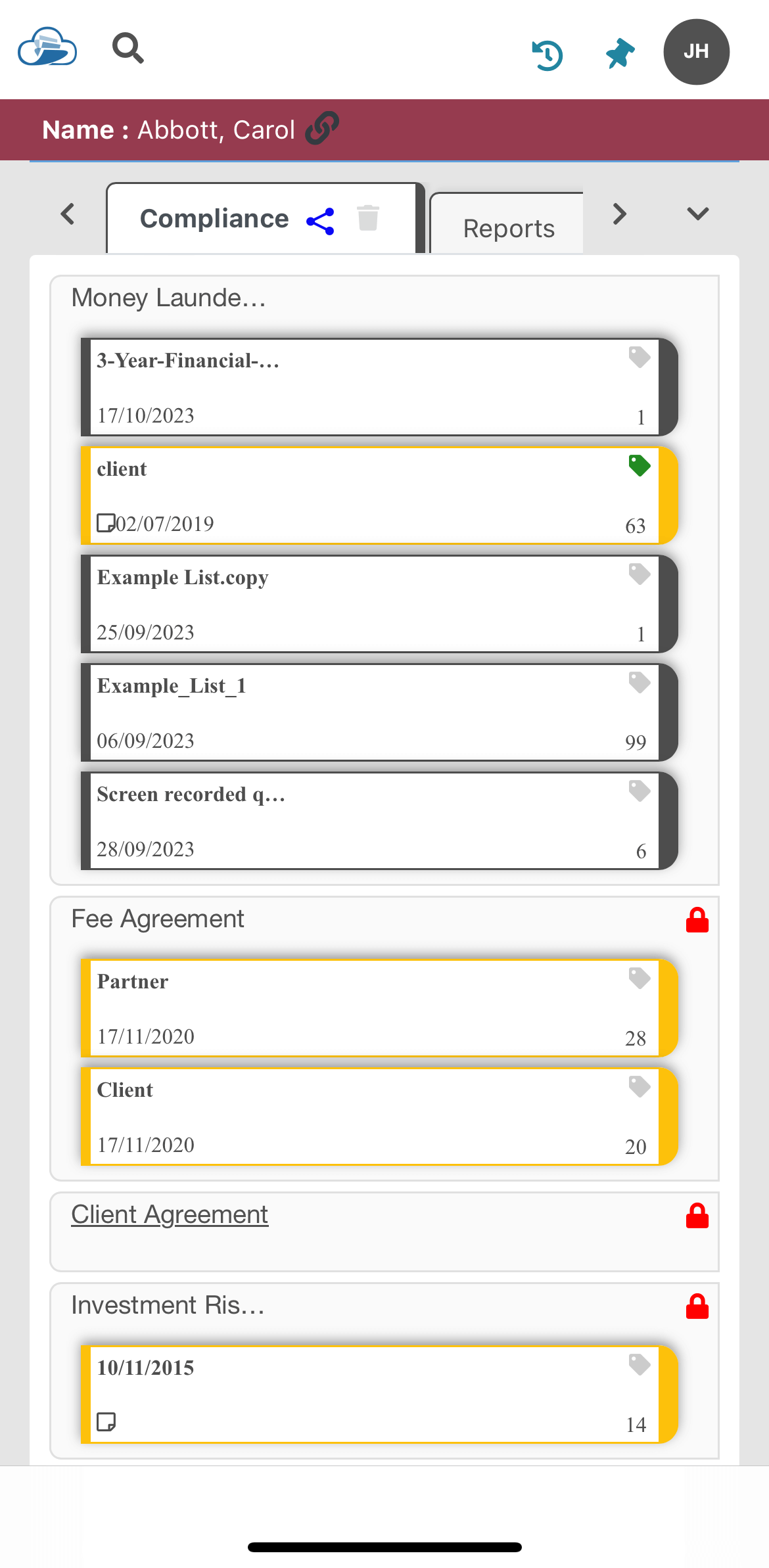
Tap on tab to display rows and tap on row to expand and display boxes
Mobile Browsing - All Rows Expanded
There are a couple of new features included in this new version of Papercloud.
Ability to add Tags/'User Defined Fields' to client files
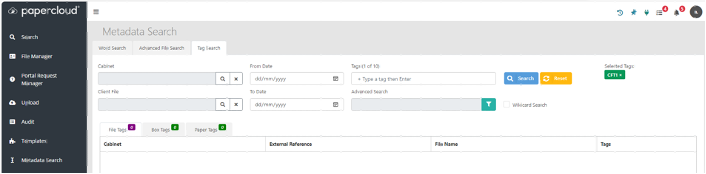
It is now possible to add tags at client file level, as well as box/paper level. This functionality can be used to effectively create ‘User Defined Fields’ on the client file. There are corresponding enhancements to the Metadata Search with the addition of a Tag Search tab.

Improved CSV Import with Dynamic Mapping
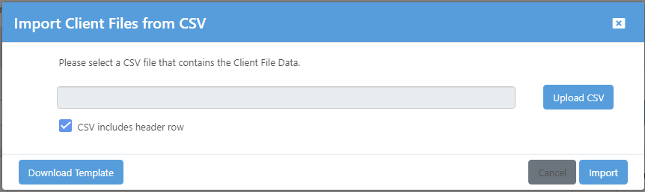
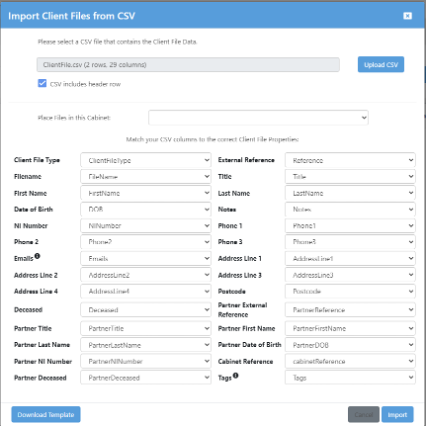
There is now a built in Client File CSV importer that allows dynamic mapping of the CSV fields to the client file fields.
Reiterating the point at the top of this article - on the face of it, your new Papercloud V2 will seem very similar to V1. This is by design. We have rebuilt the software (broadly 'as is') onto a platform which will massively enable future improvements, additional features and integrations. Below is a list of the improvements considered highest priority.
The Current Roadmap (Future Improvements)
If there's something you'd like Papercloud to do (within reason!) that it currently doesn't, please let us know now - the sooner we know, the sooner we can give consideration to your requests. Email us at hello@watermarktech.co.uk with your suggestions.
Q. What would happen if Connect is out of date or it cannot be updated in time?
A. You’ll still be able to access Papercloud, however some functionality offered via the Watermark Connect plugin might not operate as expected. We have tried to retain as much backward compatibility however there are versions of Connect that are over 18 months old so some of the newer features will not be supported.
-
Q. Where can I find the latest version of Watermark Connect to install?
A. Please see the below helpful guide relating to this: https://www.watermarktech.co.uk/install-connect-pc-2/
-
Q. Will there be any downtime with this upgrade?
A. Most work we perform of this nature will be done out of office hours so you shouldn’t notice or experience any downtime. Our deployment hours are typically 22:00 onwards relating to any scheduled maintenance.
-
Q. Will the new and old versions of Papercloud co-exist at the same time?
A. No they won’t – the update will happen overnight, next morning, everyone will be logging into their new Papercloud system via the regular https://www.papercloudelite.co.uk URL.
-
Q. How will I know that the new version of Papercloud has now gone live?
A. The biggest clue is the Initial Sign-In screen, but you’ll also notice some minor design tweaks – like the alignment of the Papercloud logo in the top left of your screen. The new version has the cloud icon aligning with the other icons in the menu list.
-
Q. Does my data/settings move from the old version of Papercloud V1 to the new version?
A. Yes, all settings will be retained.
-
Q. Does the new version of Papercloud lack any of the current functionality in Papercloud?
A. No – the products are identical in core functionality
-
Q. Will my Back-Office and peripherals operate in the exact same way?
A. They should do but everyone’s work environment is different. If you’re concerned – drop us a line via the support form / support@watermarktech.co.uk email address and we’ll do our best to help. Remember to let us know what your setup is to better enable us to respond quickly and comprehensively.
-
Q. How do I access the new version of Papercloud?
A. The same URL as ever… www.papercloudelite.co.uk
-
Q. Although the sign-in page looks different, are there any changes in functionality?
A. As mentioned above – the brief in this first upgrade is to build everything ‘as is’ with some minor tweaks and usability / visual improvements. Functionality upgrades and improvements are on our development roadmap for future releases.
-