
Upgrade Volume to latest version on a client machine

KB060 - Guide containing instructions on how to upgrade to the latest version of Volume (client)

Before running the installer, close down Volume, Word, Excel and Outlook applications.

1

Go to our login page.


2

Logon to portal using username and password combinations supplied by Watermark support (support@watermarktech.co.uk).


3

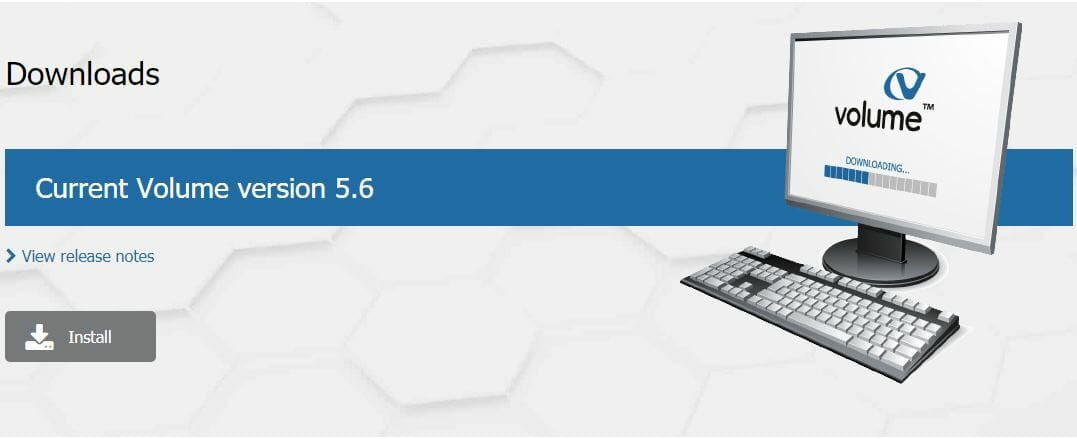
Once logged in, you will see Volume’s latest version displayed as below and an install link.

Click on “Install”, then download and run the installer.
Upgrade Volume to latest version on a client machine 1


5

Click "Next".

Upgrade Volume to latest version on a client machine 2


6

Click “I Accept the Agreement” and then click "Next".

Upgrade Volume to latest version on a client machine 3


7

Click "Next".

Upgrade Volume to latest version on a client machine 4


8

Select “Client/Work Station” from the dropdown menu below and then click "Next".

Upgrade Volume to latest version on a client machine 5


9

Click "Next".

Upgrade Volume to latest version on a client machine 6


10

Leave the default checkboxes ticked, and click "Next" and then "Finish".

Upgrade Volume to latest version on a client machine 7


11

Click on the "Install" button.

Upgrade Volume to latest version on a client machine 8

Once the install has completed, open Volume as normal.


hello world!
Posted in: 

Leave a comment

Leave a Reply

Your email address will not be published. Required fields are marked *

This site uses Akismet to reduce spam. Learn how your comment data is processed.

Accreditations

ISO 27001 certification highlighting information security management complianceISO 9001 certification document for quality management systems
hello world!
linkedin facebook pinterest youtube rss twitter instagram facebook-blank rss-blank linkedin-blank pinterest youtube twitter instagram