KB046 - Guide to locating lost documents (boxes) within the Volume system
Volume offers a variety of searching mechanism to help users locate documents.
Client files can be found by searching directly from the main window. The ‘Detail Search’ button searches using additional information such as address, partner details, phone numbers, etc.
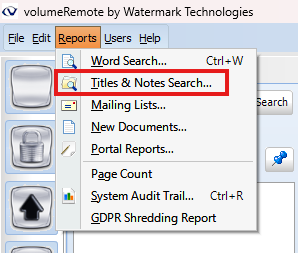
The Titles and Notes search, from the Reports menu, searches on Tab titles, Row titles, Box titles, Customer notes and Box notes. Page notes cannot be searched.
Word Search searches the OCR (Optical Character Recognition) Index produced by the volumeServer process running on the server. The results are only as good as the quality of the scanned image. Hand writing will not be recognised. Poor quality images will result in a low yield of searchable words. Certain printer types also produce low quality scanned images, such as dot-matrix printers for example. Laser printed documents produce the best quality and therefore the best OCR results. This process only runs at night so documents will not be found using the Word Search until the following day.
The New Documents report is available for finding how and when new documents were added. Drag & Drop, Hot Folder, Scanned, MS Office Integration and Virtual Printing.
See below for a more detailed description of the 4 options available.
1 - Client file searches
Type in the file name or client name into the Name field, top left of the main window. Only the first 200 results are returned in the list. The ‘Detail Search’ button will allow a more refined search.
Detail searches can have any combination of fields. Part or whole words can be used. The result list is not limited.
2 - Titles and Notes search
Navigate to the 'Titles & Notes Search' page in the 'Reports' tab.
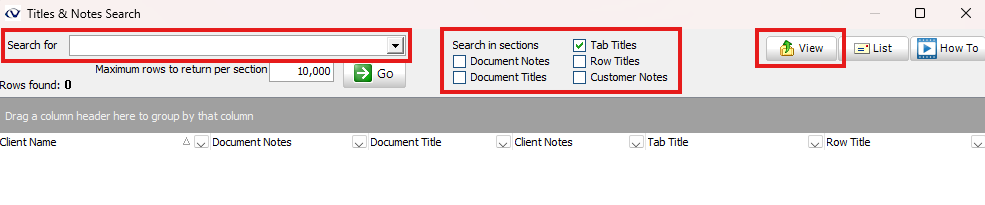
Enter a word and tick one or more of the ‘Search in sections’ then click 'Go'. Each of the ‘Search in sections’ is represented by a column in the results list.
Click View to jump to the file where the document entry was found.
3 - Word search
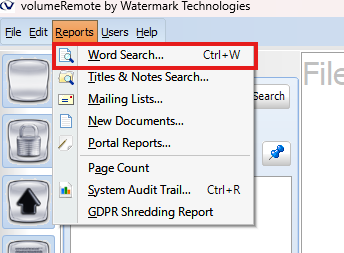
Navigate to the 'Word Search' page in the 'Reports' tab.
Enter one or more words to search for. Tick the Recycle Bin check box to include recycle bins for all users. Click GO to start the search.
Only documents with the required access to will be returned. The top left shows the current page number and how many were found.
Using the Next and Previous buttons step through the matching pages. Once the page has been found click the View button to jump to the page. The page will be highlighted with a blue border.
The current page can be viewed full Width, Actual image size or Full height of the screen.
4 - New document report
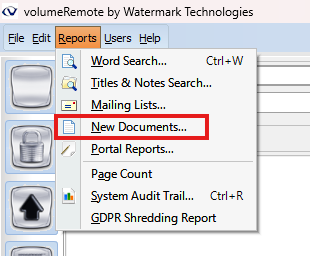
Navigate to the 'New Documents' page in the 'Reports' tab.
Select the required filters along the top. Paperwork Source can filter the report to a specific type of document creation.
Drag and Drop – windows files that were dragged into Volume from a Windows folder.
Hot Folder – where documents are automatically imported into Volume from an outside source such as a stand-alone scanner (MFD). See knowledge base for documents on ‘Jump/Remote Scan’ for more information.
Office Integration – Word, Excel and Outlook documents created from the Microsoft Office Integration Add-in.
Paperdrop – documents uploaded from a Volume Portal user.
Scanned – documents from a USB connected desktop scanner.
Virtual printing – documents uploaded from selecting the Volume printer when printing.
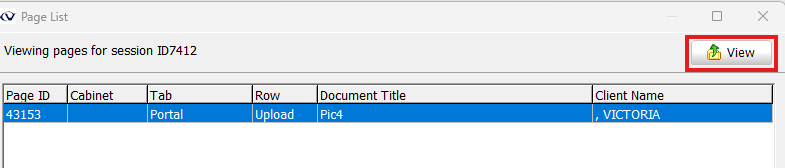
Double click on a line in the report to show a list of pages that were created in that session.
Click the View button to jump to that individual page in its current location.
To provide the best experiences, we use technologies like cookies to store and/or access device information. Consenting to these technologies will allow us to process data such as browsing behaviour or unique IDs on this site. Not consenting or withdrawing consent, may adversely affect certain features and functions.
Functional
Always active
The technical storage or access is strictly necessary for the legitimate purpose of enabling the use of a specific service explicitly requested by the subscriber or user, or for the sole purpose of carrying out the transmission of a communication over an electronic communications network.
Preferences
The technical storage or access is necessary for the legitimate purpose of storing preferences that are not requested by the subscriber or user.
Statistics
The technical storage or access that is used exclusively for statistical purposes.The technical storage or access that is used exclusively for anonymous statistical purposes. Without a subpoena, voluntary compliance on the part of your Internet Service Provider, or additional records from a third party, information stored or retrieved for this purpose alone cannot usually be used to identify you.
Marketing
The technical storage or access is required to create user profiles to send advertising, or to track the user on a website or across several websites for similar marketing purposes.