
Remote OCR ('G' on your taskbar)

KB085 - Turn off Remote OCR

A user's Volume can be set to help out the server with processing documents through OCR, but this can cause the user to experience interruptions where the OCR process takes control of the PC.  When this happens a 'G' icon will appear on the task bar.

Remote OCR ('G' on your taskbar) 1

1 Turn off 'Remote OCR'.

If the OCR process disrupts normal operations it can be switched off.

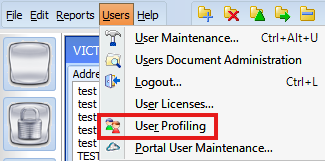
Click on 'Users' at the top in Volume, then select 'User Profiling'
Remote OCR ('G' on your taskbar) 2

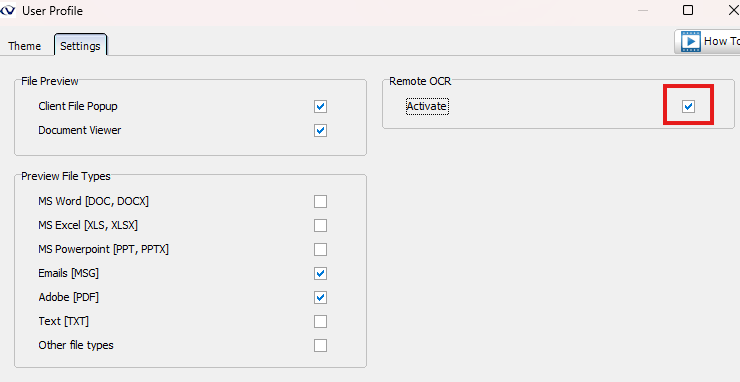
On the next screen remove the 'tick' from the 'Activate' box and click 'OK'.  This will disable 'Remote OCR' and stop the user being interrupted by the background process.
Remote OCR ('G' on your taskbar) 3

To make the changes take effect close and reopen Volume.


hello world!
Posted in: 

Leave a comment

Leave a Reply

Your email address will not be published. Required fields are marked *

This site uses Akismet to reduce spam. Learn how your comment data is processed.

Accreditations

ISO 27001 certification highlighting information security management complianceISO 9001 certification document for quality management systems
hello world!
linkedin facebook pinterest youtube rss twitter instagram facebook-blank rss-blank linkedin-blank pinterest youtube twitter instagram