

Menu
KB099 How to configure the new Multi-factor Authentication feature in your Volume Document Management Software.
IMPORTANT: Please note - the most recent version of Volume (5.6.5.1105 or later) needs to be downloaded and installed FOR ALL USERS, company wide. Once you've made the decision to upgrade and have started using the new version with MFA, any users within the company that don't upgrade will not be able to access the software.
ALSO: Please note - this upgrade is for Volume Remote users only.
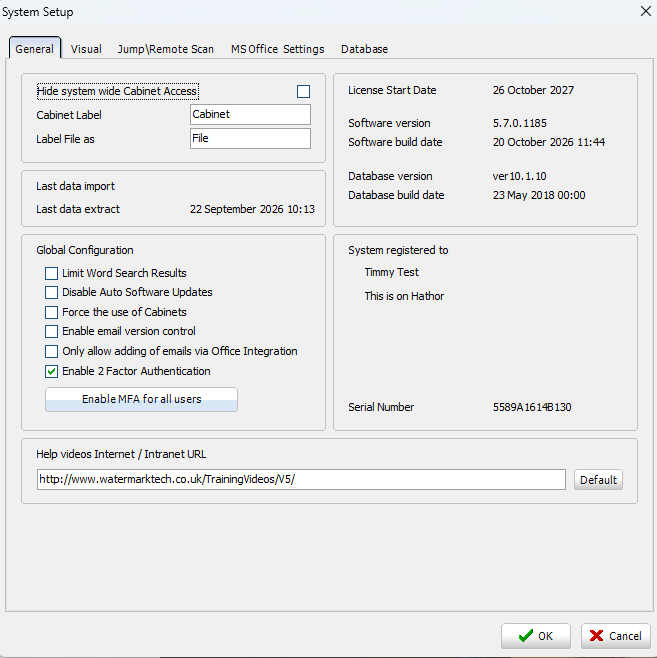
To enable 2FA: Check the “Enable 2 Factor Authentication” checkbox in system setup:
Either select the 'Enable MFA for all users' to instantly enable MFA for everyone in the organisation. To do individual user setup, leave the first checkbox selected and then you can make changes to each user in user maintenance.
Click Yes:

Once enabled, an extra field appears on the login form: -

For the first login of each user, the 2FA Code field is ignored as 2FA has not yet been configured.
For subsequent logins, the code from the authenticator application must be entered as a second password.
First login: After entering a valid username and password, a Timebased One Time Password (TOTP) setup form is shown.
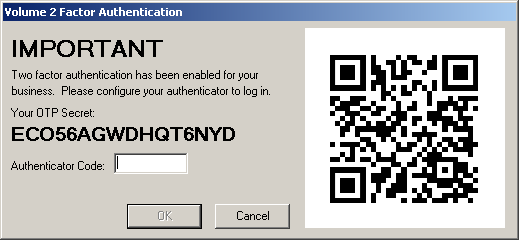
The code may be typed into a standard authenticator application, or the QR code scanned by a mobile phone to automatically add the details. Both the Microsoft and Google authenticator applications are supported.
When scanned with the Google Authenticator application, an entry will be created with the format:
Volume:USERNAME@DATABASE e,g, Volume:ANDY@ABVRMFA indicating that the username is ANDY and the code relates to the database ABVRMFA.
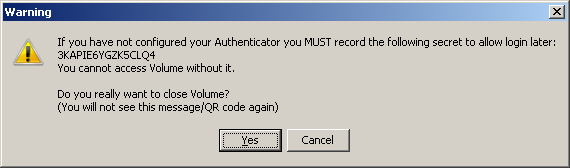
A valid token code must be entered from an authenticator to continue. Clicking cancel will issue a warning and allow Volume to close: -
To set some users to use MFA and some to have it disabled, go to a user in user maintenance:
Here you can select whether MFA is needed for login on their account:

If a user ignores the warnings in an attempt to skip the TOTP setup, they will be locked out of their account. In this event, User Maintenance can be used to reset the process: -

To authorise the reset of a user’s 2FA settings, the user actioning the change must enter their own code.

