

Menu
Dump database contents to disk as Windows files. This process will create Windows folders and files based on the database contents. One folder for each file is created, retaining the file name as the folder name. Each file is copied to the folder in its original format (PDF, DOC and TIF for example).
This process will take a considerable amount of time depending on size of data and speed of server and is best run outside office hours.
Open Volume, select 'File', then click on 'System Setup'.

Select 'Database' tab and then 'Dump'.
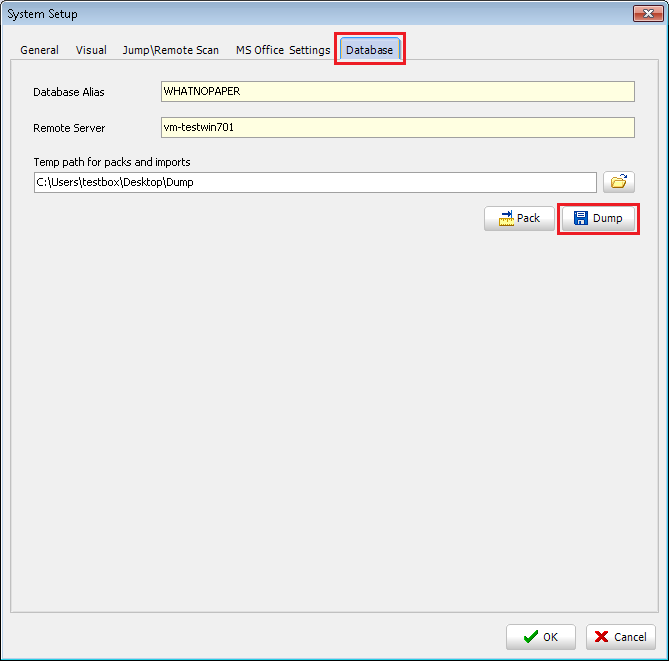
Select a destination location. This location must have enough free disk space to hold the entire contents of the database.

The next popup will ask if you wish to limit the extract to a cabinet, to do this click "Yes" and then enter the cabinet ID. Cabinet ID can be found on the 'Modify Cabinet' screen.


Otherwise select "No" to extract everything within the database.
The extract will then start and display a progress bar.

