Menu
To be able to track documents and client files within Papercloud, tagging can allow for granular maintenance and structuring of your site. Tagging can be applied to Client Files, Boxes, and Paperwork itself.
By default, tagging is not enabled. To enable it, open 'System Settings' and select the 'Tagging' tab.
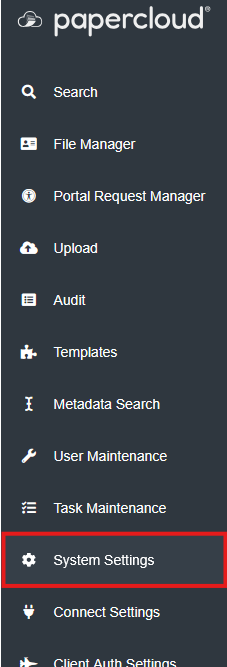

Here, check 'Allow Tagging' and save. Tagging is now enabled, but no tags have been made.

In this menu, you can define tags for the Client files and the tags for Boxes/Paper separately.
Type the name of the tag you wish to make, then click the '+' or press enter.
Once done editing your tags, press 'Save' to leave.
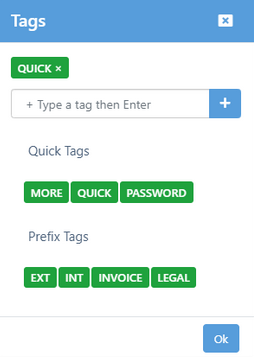
'Prefix Tags' are an alternate tag that allows you to input variable data after a set prefix.


When applying a prefix tag, the characters entered in the tag's field will be prefixed with a standard name to make searching easier.
To add tags to a Client File, enter the Client File and press the 'Tagging' option that has now appeared due to 'Allow tagging' being activated.

Here, you can either apply your globally set tags or apply a one-time tag to the client file by just clicking on the tag.
When a tag is added to a client file, the number displayed next to the 'Tagging' option will reflect the amount of tags on the file.

Tags are removed by clicking the 'X' on an applied tag.
NOTE: Tags created and applied in this dialogue box are not added to the global list in the System Settings.
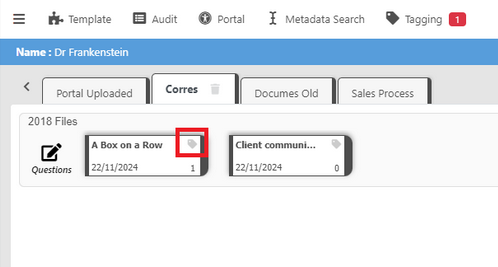
To add tags to a box, click the tag icon in the top right corner of the box.
Here, you choose the tags you wish to apply and press 'Ok'.
Now the box tag icon will be coloured to signify the presence of a tag.

To add a tag to paperwork, enter the box with the paperwork, and click the tag icon in the bottom right of the paperwork's thumbnail/icon.

This will display the tag dialogue box for the paperwork.

The paperwork tag icon will now be green to signify the presence of a tag.

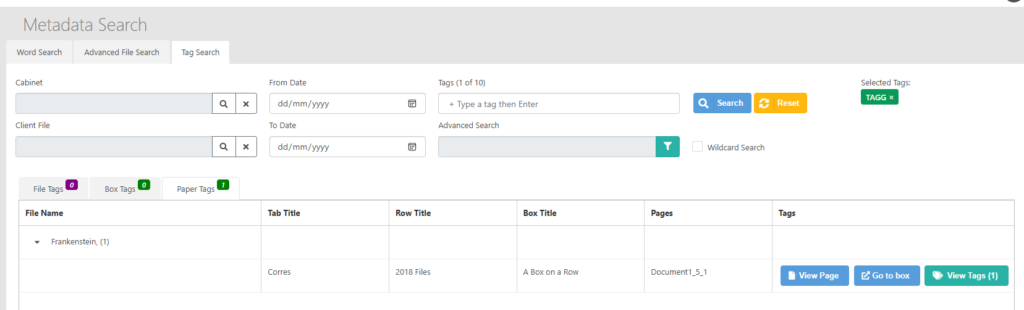
To search for all instances of a tag being used, head to 'Metadata Search'. On the third tab is 'Tag Search' where tagged items can be parsed.
You can head to Metadata Search either from the left hand menu items or from within a client file. If done from a client file, metadata search will automatically filter down and open to the client file you came from.

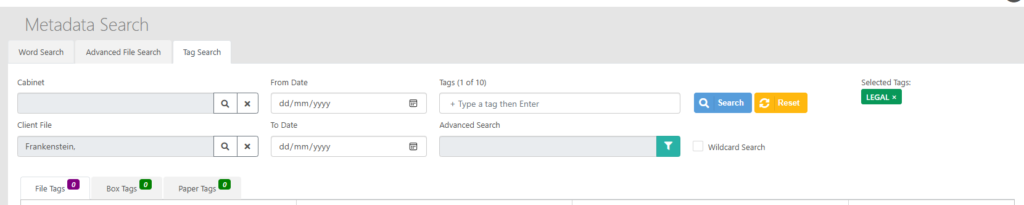
Here, select the "Tag Search" tab. This is where you can perform your tag searching.
Enter your search criteria along with the tags you wish to filter the search by. (You can enter up to 10 tags in the search field.)
Once you search, you will be given the associated search results under the "File tags", "Box tags", or "Paper tags".