
Menu
First thing to do if Papercloud has a red plug is to perform a few steps to check the connection:
First, check that ‘Watermark Connect’ is running.

In the system tray you should have the ‘Connect’ icon running. If not, search for ‘Watermark Connect’ and run it (it will now appear in your system tray either on the taskbar or by clicking the up arrow to see more applications).
If Connect is running, while within Papercloud, click the red plug. This will cause Connect to attempt to re-establish the connection, giving you a green plug,
Right-click the system tray icon, and click ‘Close’ in the dropdown that appears.

Once Connect is closed, search for ‘Watermark Connect’ and re-launch it.

Once Connect is re-launched, in Papercloud, click the red plug to change it to green,
If launching Connect results in it appearing in your system tray, then disappearing a second later, see the Watermark Connect, Launches then exits shortly afterwards. | Watermark Technologies Ltd Knowledgebase document for resolution steps.
In early April 2026, some web browsers hardened their security so that websites cannot communicate with desktop apps, which may cause the plug to turn red. To fix this, change this setting within your browser. This depends on which browser you use.
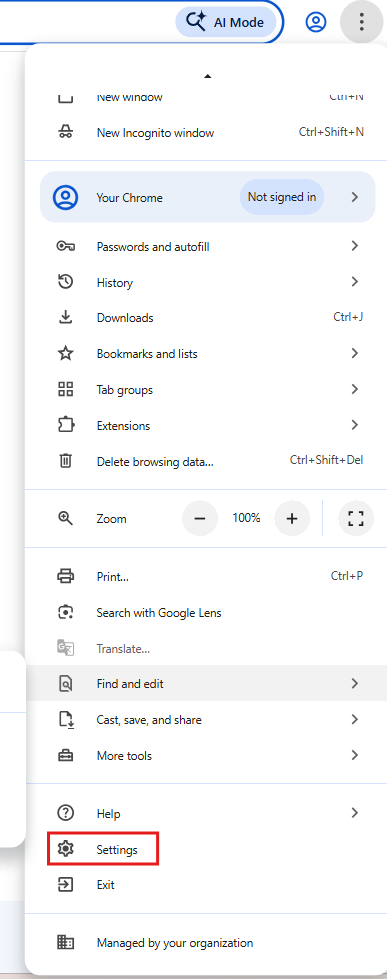
Go to Chrome settings:
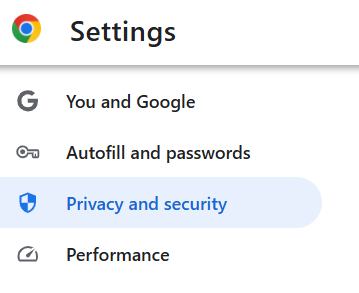
Go to Privacy and security:
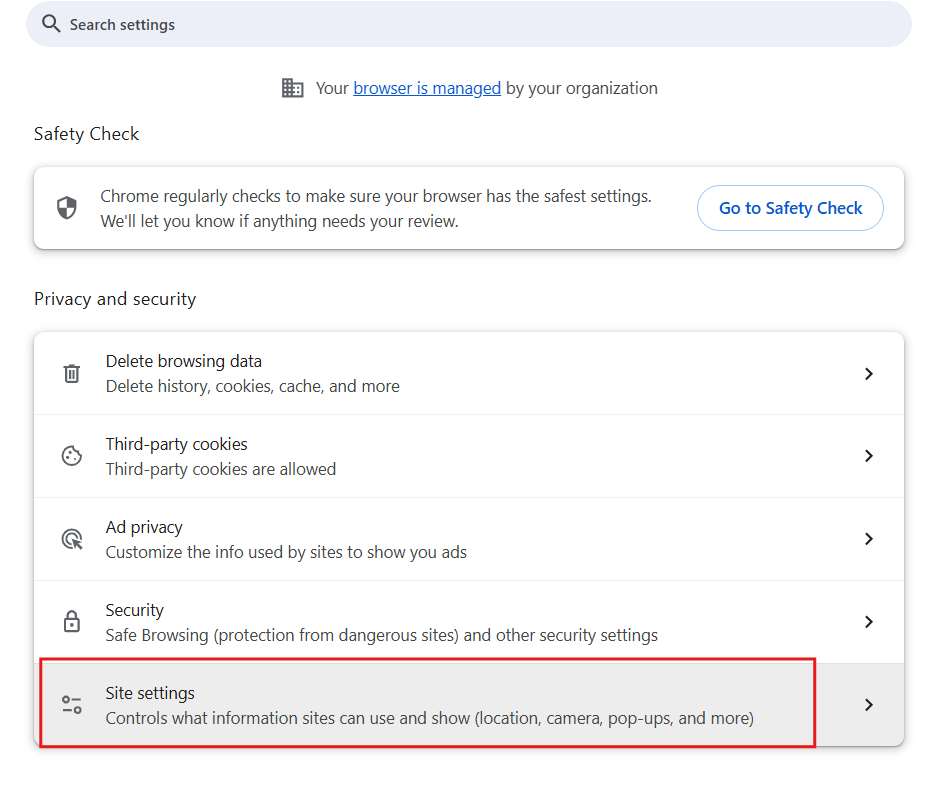
Go to Site settings:
You may see Papercloud in recent activity. Click this to expand the site settings:
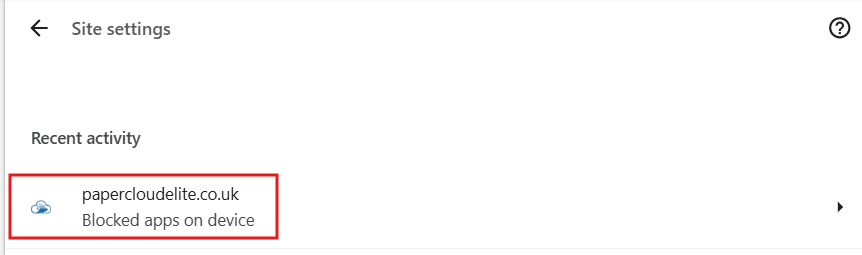
Scroll to the bottom and allow Apps on device as this will allow Papercloud to communicate with Connect.
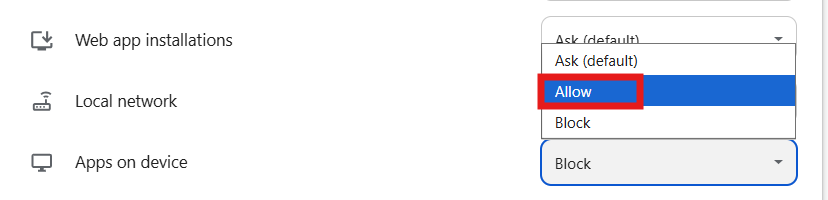
Go to Edge settings:

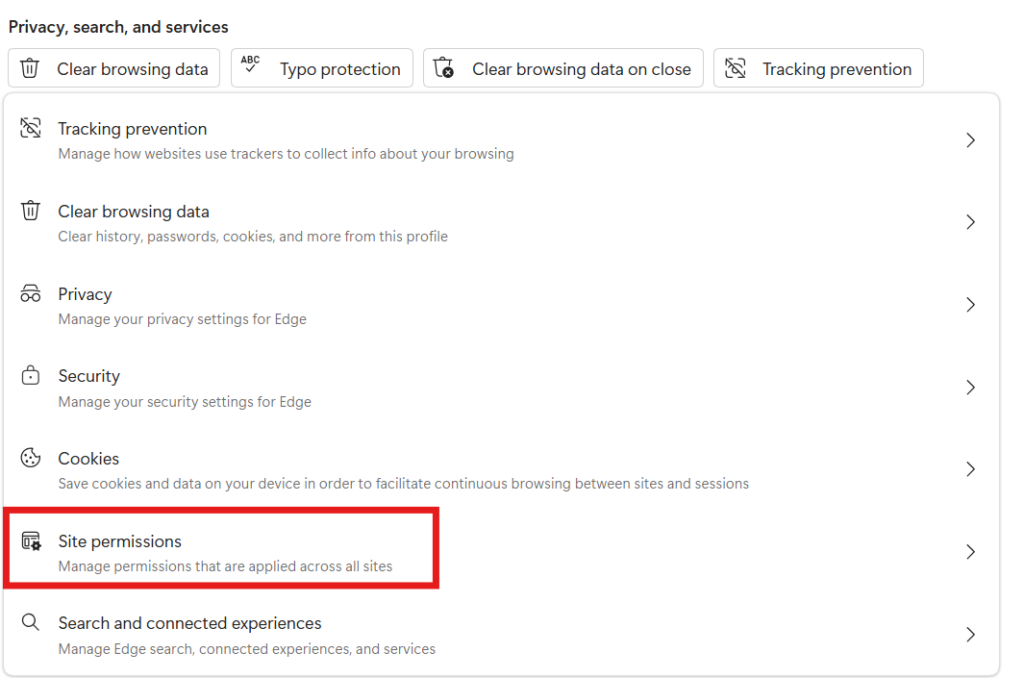
Select 'Privacy, search and services':

Click 'Site permissions':
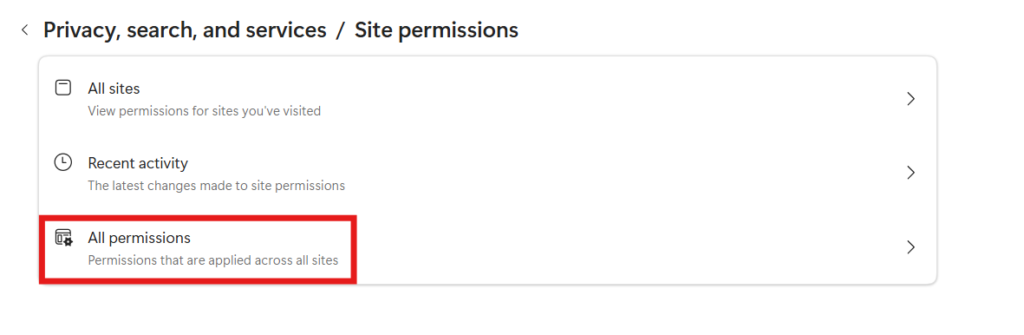
Click 'All permissions':
Scroll to the bottom, and select 'Apps on device'
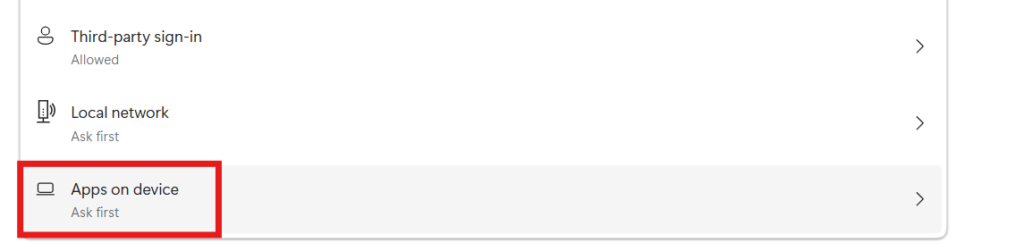
Select'Add site' and add papercloudelite.co.uk. Ensure Papercloud is not in the top list.
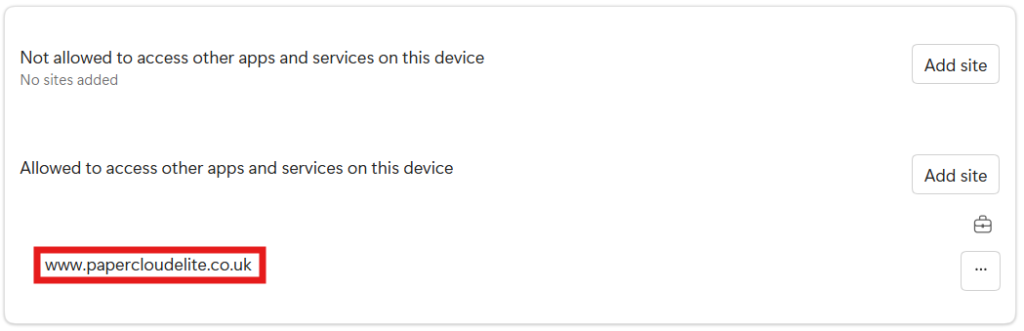
Refresh Papercloud, click 'Allow' on the pop-up and click the plug again. It should go green.
If taking the actions outlined above doesn’t resolve the issue when you have a red plug, feel free to contact support@watermarktech.co.uk for further assistance.