Menu
Papercloud Elite users can get notifications when portal clients upload documents. When a user is set to receive notifications, either directly or via a Communications Group they are called 'Subscribers'.
Users can convert these notifications into 'TO DO' list items on the dashboard.
A notification that a portal client has uploaded a file can be added to a single user or a 'Communication Group' of users.
To create a communication group, first enter the 'User Maintenance' screens, using the spanner icon.

Then click on the 'Communication Group' link.

In the Communication Group edit box you can add groups by clicking the '+' button.

Or edit existing groups by choosing them from the drop down.
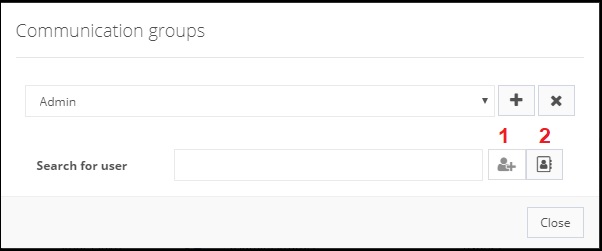
You can start typing user names in the 'Search' box and use the add button (1) or you can click the 'list' icon (2) and tick each user to add to the group. You can remove members using the 'X' against the member of the group.
You can add a user or a Communication Group via the 'Portal' link in the open file or in the 'Portal' section of 'User Maintenance'.
Open a file and click the 'Portal' link at the top of the page.
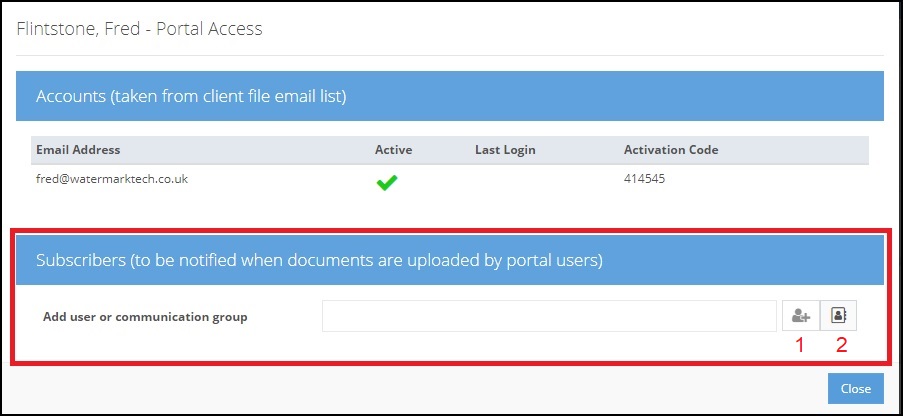
In the 'Add user or communication group' box type a name and a list will appear, highlight the correct user/communication group and click the 'Add' (1) button. Alternatively the 'List' (2) button will allow you to tick the users/communication groups you want.
The display will then show the users/Communication Groups associated with that portal client. Clicking the 'X' in the top right will remove that user/communication group.

To add a user/Communication Group via 'User Maintenance', click the user maintenance icon
Then choose the 'Portal' drop down at the top.

Next click the 'edit' button for the portal user you want to change.
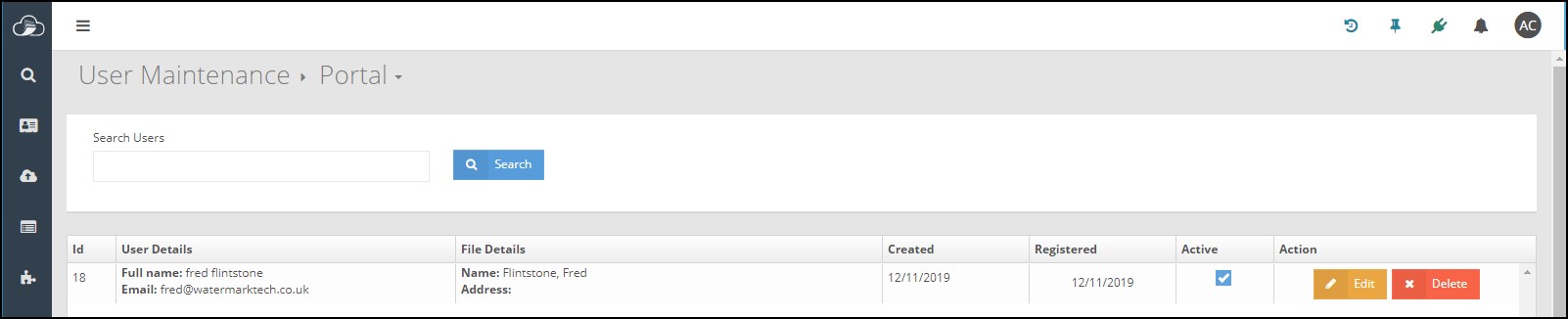
and the 'Add user or communication' option is at the bottom of the screen.

Users or a Communications Group can be added or removed in the same way as detailed above.
When a client with portal access uploads a document, the 'Subscribers' to that client will see a new notification as a number overlaying their notification bell.

Clicking on the 'Bell' will give more information and also a list of unprocessed notifications.
Clicking the 'X' acknowledges the user has seen the notification and removes it from the list. Clicking the 'Pin' turns the notification into a 'To Do' item on the users dashboard.


Clicking on the 'To Do' item will take the user directly to the uploaded document in the portal users file and tick the 'To Do' item as complete.

The ticks can also be manually added/removed. If the ''To Do' item is no longer required it can be completely removed using the 'trash' icon.