Menu
Open System settings and apply the option.

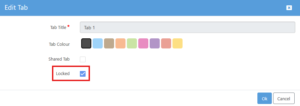
When creating a new Template, there is the option once the rows and boxes have been created to lock specific tabs. As a result, no boxes can be added, removed or have a name change from within a locked tab section.
For existing Templates, the locking option can also be applied and would be effective when the Template is used moving forward.
Content can still be added in to the boxes.

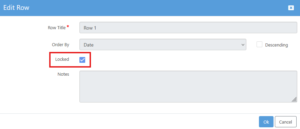
When creating a new Template, there is the option to lock a row. As a result, once applied to a file no boxes can be added, removed or have a name change from within a locked row.
For existing Templates, the locking option can also be applied and would be effective when the Template is used moving forward.
Content can still be added in to the boxes.
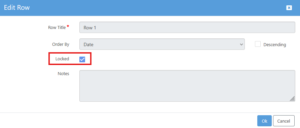
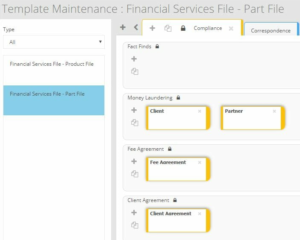
The Tab and Row locking can also be manually applied to an existing file.
Box locking:

Row locking:
Right-click a row and select 'Edit'.