
Menu
In Papercloud Elite, it is possible to 'link' two related files together e.g. Mr & Mrs Smith. A tab can also be shared between the linked files.
By default, manual linking of files is not enabled. To enable it, open the 'System Settings' menu.
NOTE: Appropriate Papercloud permissions are required.
Click on the 'System Settings' Icon.
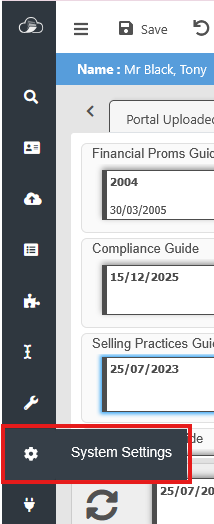
Then, on the 'General' tab put a tick in the 'Allow Manual Linking of Files' and click 'Save'.

Using 'File Manager', find the first of the two files to be linked and click the 'Edit' button.

On the 'Edit File Details' page there is a link icon on the 'Secondary Contact'.

Click the link and search for the second of the pair of files.

Click on the second file name and the link will be created.
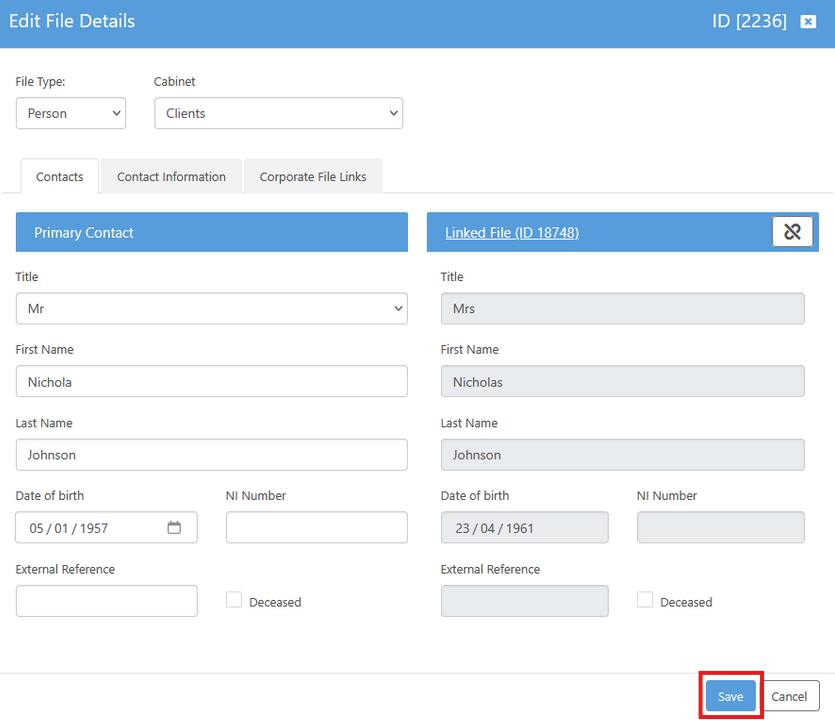
Click 'Save' to save the link or click 'Cancel'.
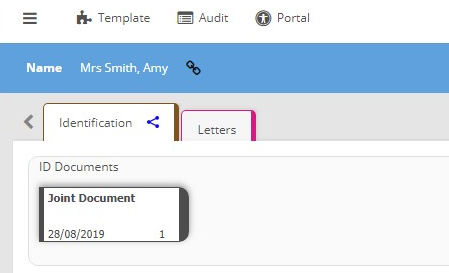
Once a link has been established, a link icon is displayed alongside the file name when the file is open. Hovering over the 'link' will show the file that it is linked to.
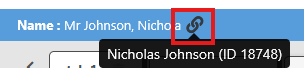
Clicking the link will switch focus to the 'linked' file.
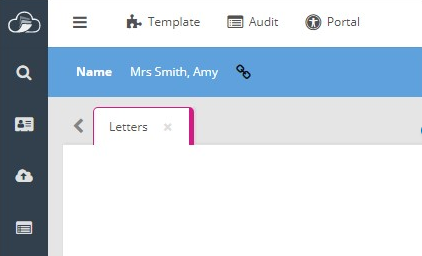
Tabs can be shared between linked files, this allows documents to be accessible from either file,

When the 'Allow Manual Linking of Files' option is ticked in 'System Settings' the 'Allow Sharing of Tabs' option becomes available.
To edit a Tab, double click on the tab name. This will show the 'Shared Tab' tick box in the tab properties.
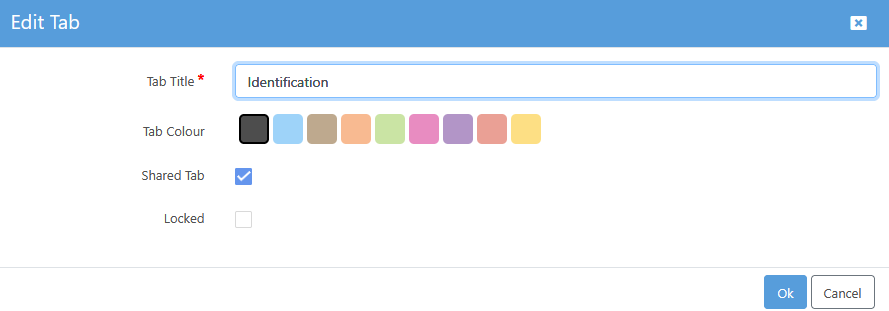
Once shared, the tab will show a 'Shared' icon next to the name.
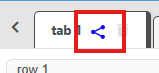
Any documents rows or documents added to the shared tab can be seen from either file. Only one tab can be shared between files.
A tab can only be un-shared from the file that originally shared it. Edit the tab and remove the tick from the 'Shared Tab' Box.
The link between two files can be broken from either file by editing the file and clicking on the link icon for the 'Secondary Contact'.
This will unlink the files. The client file may need to be reloaded to remove the link icon.