Menu
Watermark Connect is the add-in to Papercloud Elite enabling additional functionality which is usually restricted from use within a web browser. This includes Virtual Printing, USB Scanner control, document imports, hot folders for office based scanner (MFD) compatibility, and version control for Word and Excel documents.
When logging in to Papercloud Elite for the first time on a new device the Watermark Connect icon will be red, indicating that it is not active. This will be as a result of it not having been installed, that it is not running, or that a version upgrade is required.

In this case you just need to re-run 'Watermark Connect' and click on the red plug.
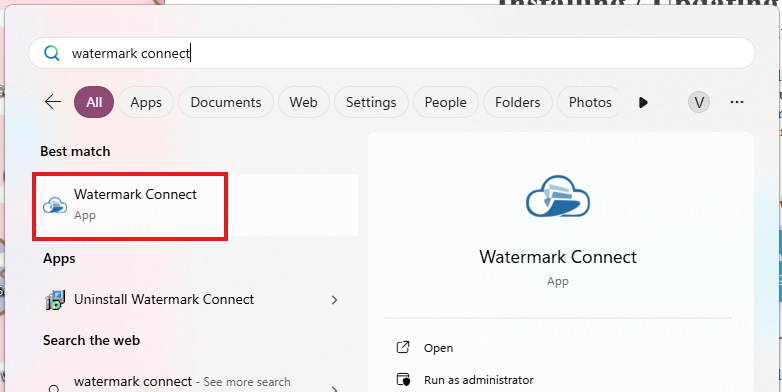
Use your devices search function. i.e. Press the Windows key and type in 'Watermark' and the watermark connect app should appear. Click on the app to run it.
Once 'Watermark Connect' is running it will appear as an icon in the icon tray.
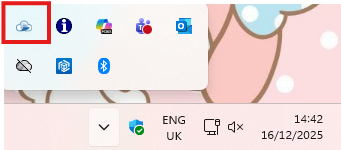
You can now click the red plug to activate 'Watermark Connect'.
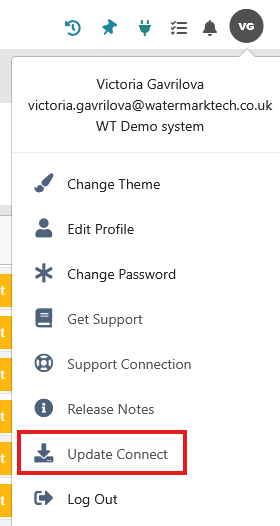
If you have never installed 'Watermark Connect' or cannot find it using search on the device, you can update your current version of Connect by clicking the 'Update Connect' option in the user menu.
The location of the download will be dependent on the browser you are using but most will put the file in your 'Downloads' folder. Locate the file and run it. Then click install.

Once you have clicked 'Finish' clicking on the 'Red' connect icon should turn it 'Green' to indicate that 'Watermark Connect' is active.

When we make a change to Connect that is considered to be a minor upgrade, we will give you the option to upgrade your version of 'Watermark Connect', as your current Connect version will still be supported.
In this instance you will see an extra message when you click on the red plug.

If this happens, click the 'here' link on the orange message and then follow the instructions in section 2 (AFTER the section instructing to select 'Update Connect').
Occasionally, we will force you to upgrade your version of 'Watermark Connect'. This will be because the version you are running has reached a cut-off date for support. In this instance, you will see an extra message when you click on the red plug.

If this happens, click the 'here' link on the orange message and then follow the instructions in section 2 (AFTER the section instructing to select 'Update Connect').