
Menu
When trying to open a document which is currently closed, an orange error notification appears reporting "File Already Open: You already have a copy of this file open." This locks the user out of the document preventing it from being worked on.
If the locked document is not appearing within the "Locked Pages" tab along the top of the "File Manager" navigation screen or not allowing you to unlock the document, follow the steps below.
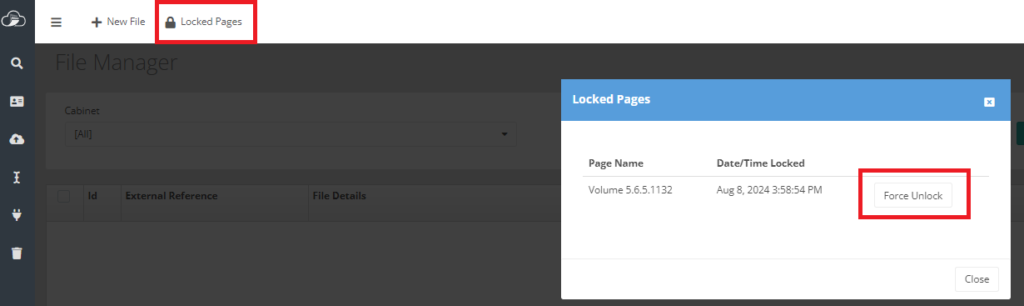

Attempting to open the affected document results in the above error being displayed. This occurs when the Connect application is retaining data from the previous instance of the document being opened in its temporary cache folder. The Connect application retains opened document data in its temporary cache, which is automatically cleared once the document is closed.
The error appears when the document has not been correctly cleared from this cache folder.
NOTE: Ensure all integrated applications are closed such as Word, Excel, Outlook, and your PDF reader prior to taking any of the steps below.
Log out of Papercloud and close the Papercloud browser tab. Next, close the Connect application by going to the system tray, right-clicking the Connect icon, and selecting 'Close'.

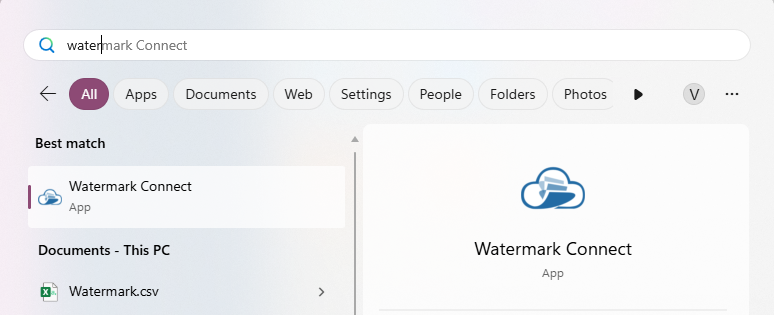
After this, relaunch Connect by searching for the ‘Watermark Connect’ app on your PC.
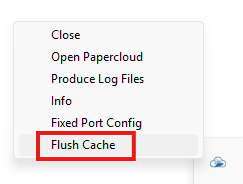
Once Connect reappears in your system tray, right-click and select ‘Flush Cache’.
A pop-up about the cache folder being cleared appears. Double click the Connect icon to launch Papercloud again. Your issue should now be resolved.
If the Connect application is out of date, it may not feature the 'Flush Cache' option. In this case, an alternate method can be used to manually clear the cache.
Firstly, within Papercloud, navigate to the 'Connect settings' option on the left side pane.
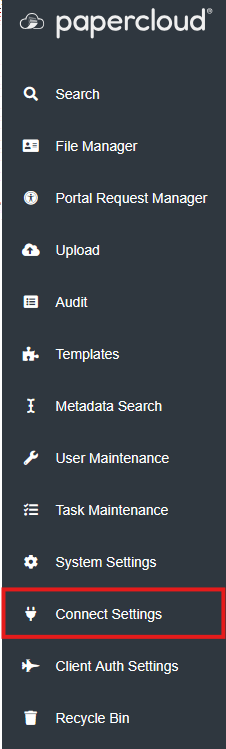
Under 'Temporary Storage' there will be a file path. Copy this path into your clipboard.

Open the File Explorer on your PC and paste the file path from the 'Connect settings' temporary storage into the navigation bar and press enter.

Ensure no other documents are open in Papercloud. Then open the "Connect_Monitored" folder.

There will be 3 files with the same coded name. Delete these files.
Once this is done, log out of Papercloud and close the Papercloud browser tab. Then relaunch Papercloud by clicking the Connect icon in the system tray twice, this will launch Papercloud with updated configurations.
The locked document should no longer be locked and can now be opened successfully.