
Menu
You can bulk upload files or synchronise file changes in to Papercloud Elite by using a CSV file. (A sample CSV can be found here watermark.csv)
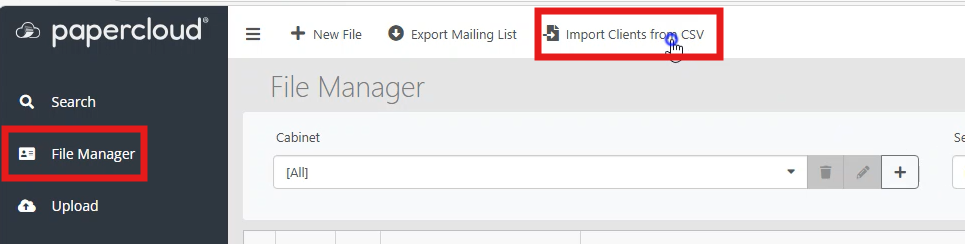
Go to File Manager, then select Import Clients from CSV.
Using the sample CSV file provided, ensure the ClientRef, first name and surname fields are populated as a minimum. The import will fail if these fields are empty.
NOTE: If you do not include the 'ClientRef' for existing files you risk duplicating the file.

Upload the CSV.

After doing this, you will see several options.
Firstly, you can place the file in a specific cabinet if preferred. You can also bulk apply a template to all of the client files added from the CSV. Simply click the dropdown and select the option you want.

You can map the details from the CSV into Papercloud by matching the headers of the CSV to the details in Papercloud. For example, if your CSV uses 'Forename' instead of Papercloud's term 'First name' you can map these here.

You will now see a new file in Papercloud populated with the details from your CSV.

If you have a row of data in the watermark.csv that has a 'ClientRef' that matches an 'External Reference' in an already existing file in Papercloud Elite, then the details in Papercloud Elite will be overwritten by those in the CSV.