
Menu
Below is a guide of how to configure and manage Authenticator app MFA in Papercloud.
To enable Authenticator App MFA, head to System Settings. Here, under "Login and Registration Policy", select "Enable MFA login".
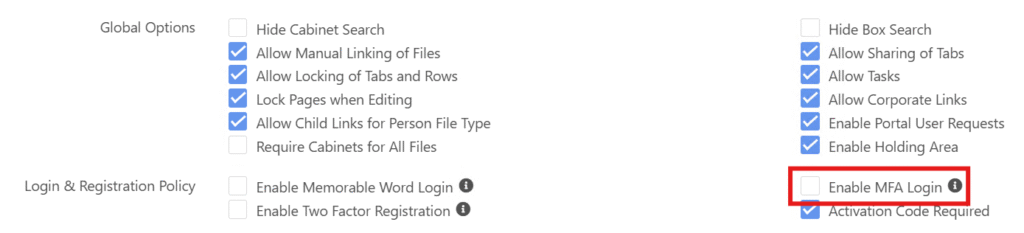
Once this is enabled, the next time users log-in they will have to register their MFA application.
To register MFA, you just need to log in after the setting has been enabled by an administrator. The next time you log in, you will be presented with the MFA configuration screen.

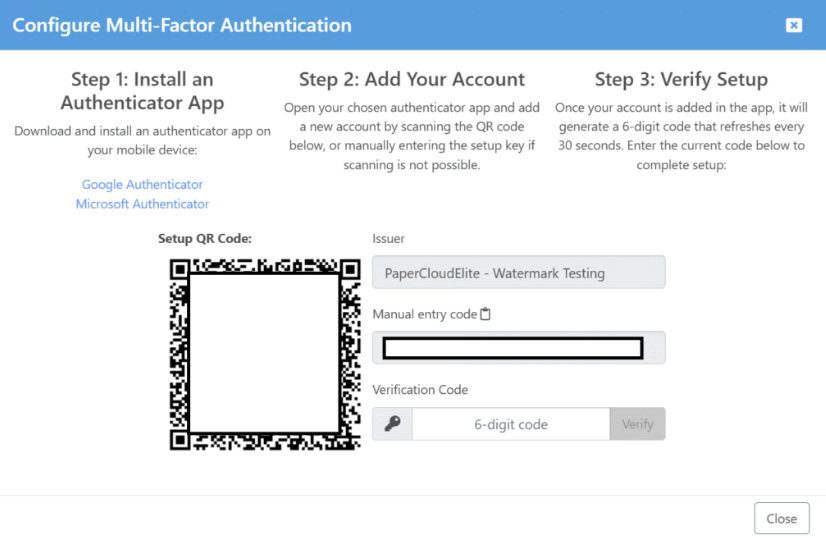
Follow the steps to register the MFA code with your preferred Authenticator app. You can either scan the QR code or enter the code manually within the app.
To reset your own MFA, you will need to be in the system already. If you need MFA resetting but cannot access Papercloud, your Papercloud administrator will need to action a reset using the steps in the section proceeding this one.
To reset your own MFA, follow the below steps:
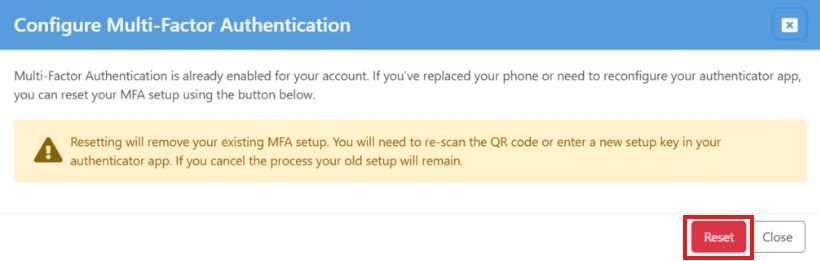
In Papercloud, click your profile icon in the top right corner and select "MFA Settings".

Here, you will be alerted that you are resetting your MFA. To continue the reset, click "Reset".
You will be presented with the MFA configuration page in which you are able to scan the new QR code or enter it manually. Then, enter the code of the new MFA profile in your authenticator app and click Verify.
You will be taken back to the reset page. You have now successfully reset your MFA. The next time you log in, you will be requested for the newly created code.
A user with sufficient permissions can reset another user's MFA if they can't access their account.
As a Papercloud administrator who has permissions to access "User Maintenance" for Papercloud users, you will be able to head to the user in question's account entry, and select "Reset MFA"

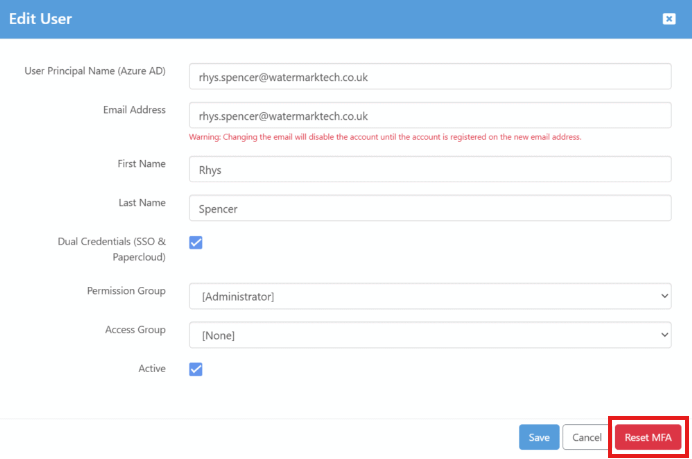
Clicking this, the user will be requested to configure MFA on login.

Check out the quick overview video which includes this feature upgrade. (MFA tutorial starts at 2:14)
If you have any issues with MFA that have not been covered here, feel free to contact support@watermarktech.co.uk for assistance.